Jobs can only be deleted by assigned standard users or managers once they have been closed and archived. Deleting a job will also permanently remove all associated application history.
Step 1: Close the Job
Locate the job in the Jobs list and ensure it has closed.
If the job is still open, edit the job and amend the closing date so that the vacancy closes.
Step 2: Archive the Job
Once the job has closed, select the three dots under the Actions column and click Archive.
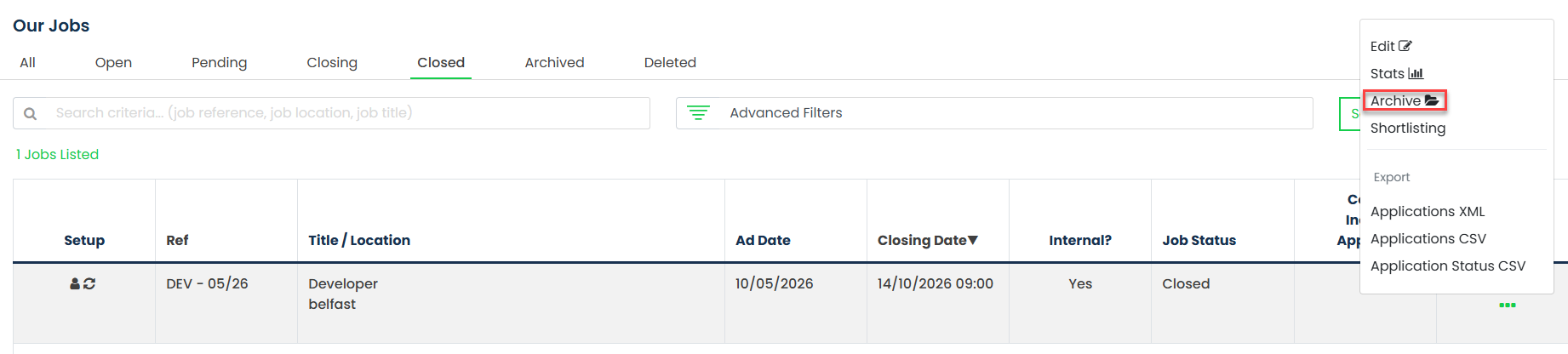
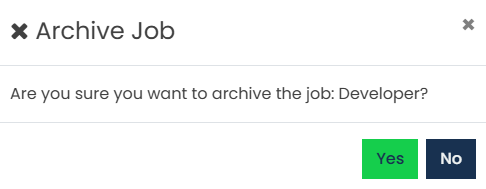
Confirm the archive action when prompted.
Refresh the Jobs list and the job will now appear in the Archived section.
Step 3: Delete the Job
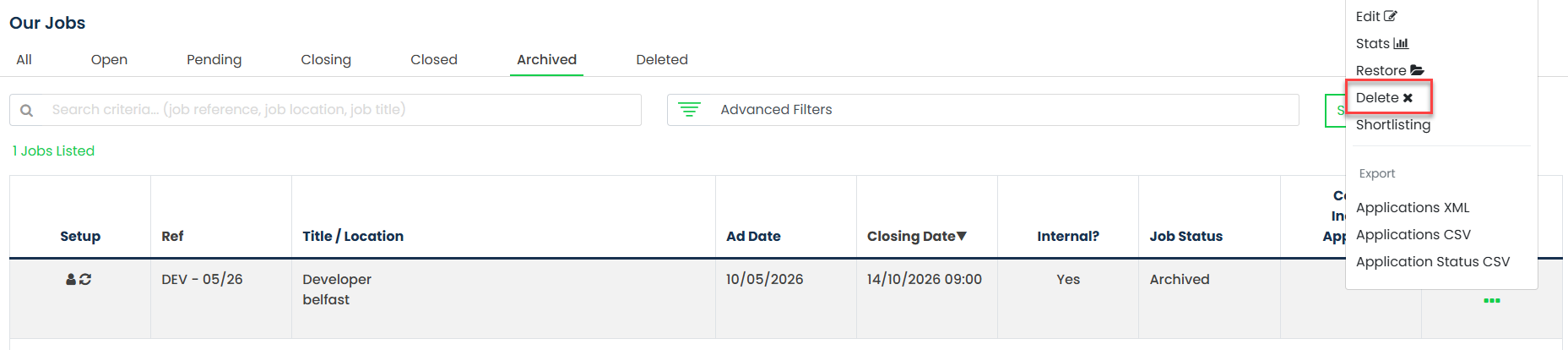
From the Archived section, select the three dots under the Actions column and click Delete.
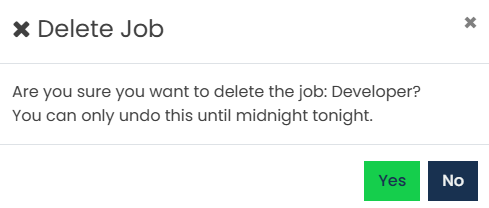
Confirm the deletion when prompted.
Step 4: Restore a Deleted Job (Optional)
Deleted jobs remain available for restoration until midnight on the day they are deleted.
To restore the job, select the three dots under the Actions column and click Restore.
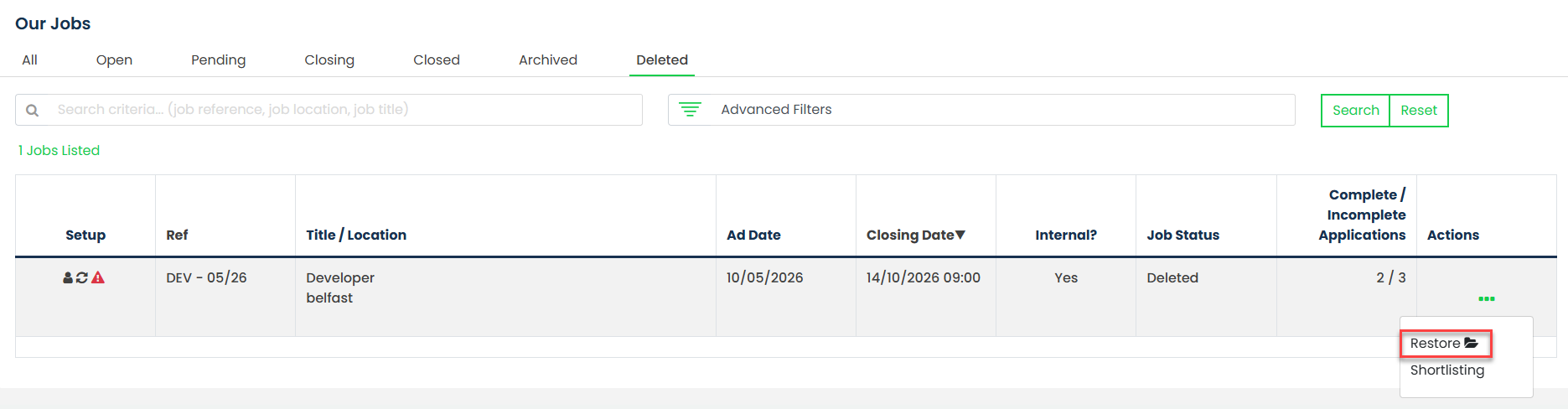
After midnight, the job and all associated application data will be permanently deleted and can no longer be recovered.
Step 5: Additional Information for Hark Users
For organisations using Hark, deleting a job in GetGot will not automatically delete the corresponding job or associated applicant records in Hark.
Any related job and applicant records must be deleted manually within Hark, if required.
Was this article helpful?
That’s Great!
Thank you for your feedback
Sorry! We couldn't be helpful
Thank you for your feedback
Feedback sent
We appreciate your effort and will try to fix the article