When a job is created in GetGot, the Standard User who creates the vacancy is automatically assigned to the job and will have access to manage it. For organisations integrated with Hark, when a job is uploaded from Hark to GetGot, the user who uploads the vacancy will automatically be assigned to the job.
Additional users can be assigned to the vacancy via the Assigned Users section. To do this, locate the job in the Jobs List, click the three dots under Actions, select Edit, and navigate to the Assigned Users tab.
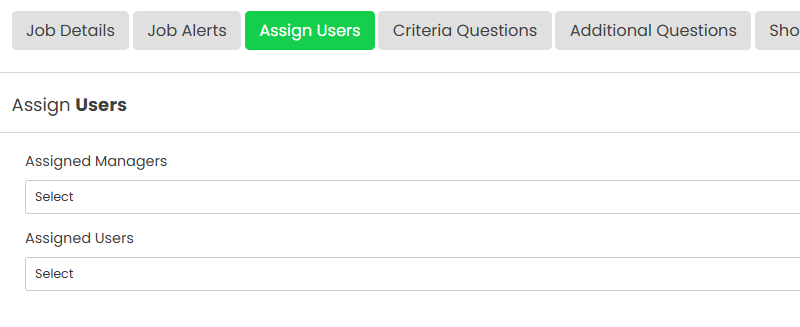
Users with a Manager role will be available within the Assigned Managers list. Assigned Managers can access the vacancy's job stats.
Users with a Standard User role will be available within the Assigned Users list. Assigned Users will have access to view and manage the vacancy.
A Standard User can only assign additional users and managers to vacancies that they are already assigned to. If a Standard User is not assigned to a vacancy, an Admin User will be required to manage the assignments.
Admin Users can assign users to vacancies in one of two ways:
For a Single Vacancy
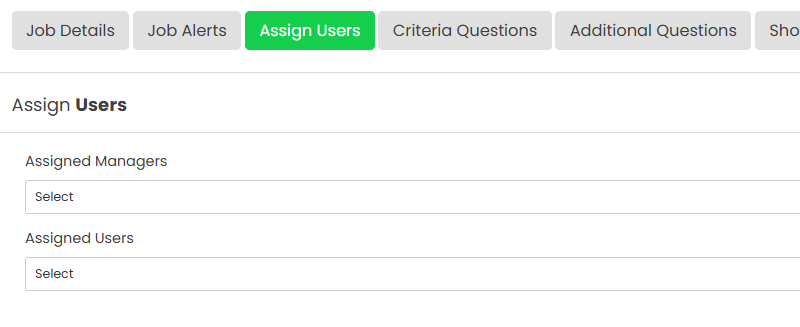
Locate the required job in the Jobs List, click the three dots under Actions, select Edit, and navigate to the Assigned Users tab. From here, select the required Standard Users and Managers and click Save.
For Multiple Vacancies
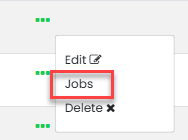
Navigate to Organisation in the top menu bar and select Users. Locate the required user, click the three dots under Actions, and select Jobs.
A drop-down list of all available jobs will be displayed. Select the relevant vacancies to assign the user to, or use Select All to assign the user to all jobs.
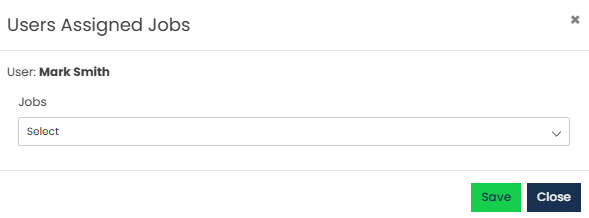
Once saved, the user will have access to the selected vacancies.
Was this article helpful?
That’s Great!
Thank you for your feedback
Sorry! We couldn't be helpful
Thank you for your feedback
Feedback sent
We appreciate your effort and will try to fix the article