Interview timeslots can be offered to applicants during the Interviewing stage. Once interview slots have been created, applicants can either be offered selected interview slots, invited to choose from all available interview slots, offered the next available interview slot, or have an interview slot booked on their behalf.
Only Hiring Managers and Standard Users assigned to the Interviewing stage can create, manage, and offer interview slots to applicants.
There are three methods available for arranging interview timeslots:
- Offer Selected Interview Slots – Assign specific interview slots to an applicant and allow them to choose from those options.
- Invite Applicants to Self-Book Interview Slots – Allow applicants to select their own interview slot from available options.
- Book an Interview Slot on Behalf of an Applicant – Directly book an applicant into an interview slot.
Step 1: Access Interviewing
Select Interviewing under Applicant Tracking on the admin portal.
This will display a list of jobs that currently have applicants within the Interviewing stage. To create and manage interview slots, select the three dots under the Actions column and choose Start/Resume against the required job.

Method 1: Offer Selected Interview Slots
This method is recommended when applicants should only be offered a specific selection of interview timeslots.
Step 2: Create Interview Slots
Ensure interview slots have been created.
For guidance on creating interview slots, refer to the Interview Slots guide.
Step 3: Assign Slots to the Applicant
There are two ways to assign interview slots to an applicant:
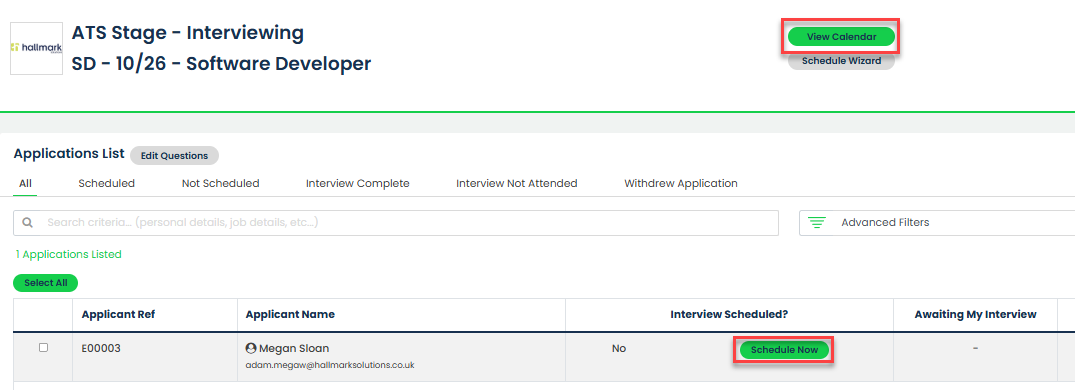
- Select View Calendar from within the Interviewing stage and assign the applicant to the required interview slots.
- Select Schedule Now against the applicant and assign the required interview slots directly.
Once either option is selected, a calendar will be displayed. Dates containing available interview slots will be highlighted with a red circle.
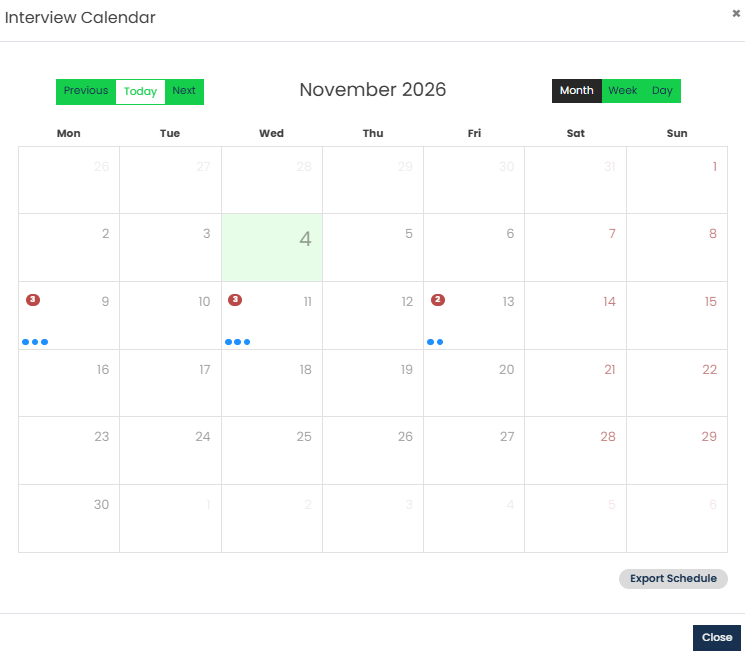
Select the required date, then click the pencil icon against the interview slot you wish to offer.

Select the applicant from the Application drop-down, set the status to Await Acceptance, and select Save.
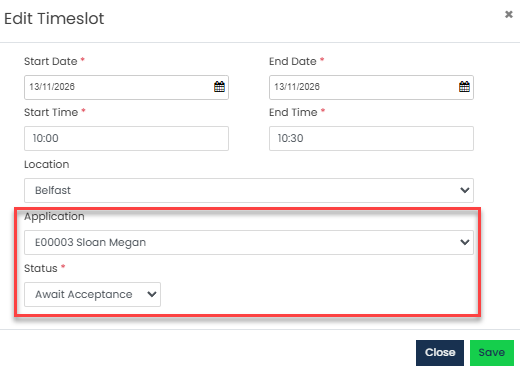
Repeat this process for any additional interview slots you wish to offer to the applicant.
Step 4: Send an Interview Notification
After assigning the slots, select the letter icon beside one of the interview slots allocated to the applicant.
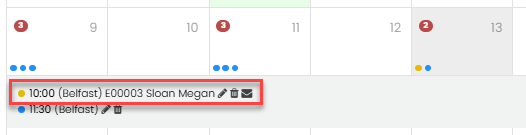
The Interview Notification screen will appear.
Select the appropriate interview notification template, amend the content if required, ensure both Offer All Timeslots to Applicants and Send Out Next Available Timeslot are unticked, then select Save.
Step 5: Applicant Selects a Slot
The applicant will receive the notification and be able to choose one of the interview slots that have been offered to them.
Once a slot is selected, the interview status will update to Booked and the interview can then be carried out.
Method 2: Invite Applicants to Self-Book Interview Slots
This method can be used when applicants should be invited to book their own interview slot.
Step 2: Create Interview Slots
Ensure interview slots have been created.
For guidance on creating interview slots, refer to the Interview Slots guide.
Step 3: Select Applicants
Within the Interviewing stage, select the applicants who should be invited to book an interview by ticking the checkbox beside their name.

Step 4: Open Interview Notifications
Select Actions > Interview Notifications.

The Interview Notification screen will be displayed.
Select the appropriate interview notification template.
Step 5: Choose the Slot Offering Method
Complete the notification template as required.
You can then choose one of the following options:
- Offer All Timeslots to Applicants – Allows applicants to view and book any available interview slot on a first come, first served basis.
- Offer Applicants Slot – Offers applicants the next available interview slot.
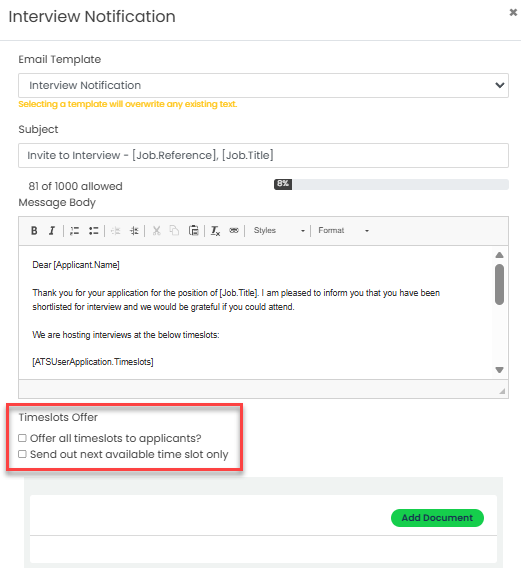
Once the appropriate option has been selected, select Save.
Step 6: Applicant Books an Interview Slot
If Offer All Timeslots to Applicants is selected, applicants will be able to:
- Select a specific location to view available interview slots.
- Select All Locations to view all available interview slots.
- Choose their preferred interview slot from the available options.
If Offer Applicants Slot is selected, the applicant will be presented with the next available interview slot and can confirm the booking.
Step 7: Applicant Selects a Slot
The applicant will receive the notification and be able to confirm their chosen interview slot.
Once a slot is confirmed, the interview status will update to Booked and the interview can then be carried out.
Method 3: Book an Interview Slot on Behalf of an Applicant
This method can be used when the interview slot has already been agreed with the applicant and does not require them to select a slot themselves.
Step 2: Create Interview Slot
Ensure the interview slot has been created.
For guidance on creating interview slots, refer to the Interview Slots guide.
Step 3: Open the Interview Calendar
There are two ways to access the interview calendar:
- Select View Calendar from within the Interviewing stage.
- Select Schedule Now against the required applicant.
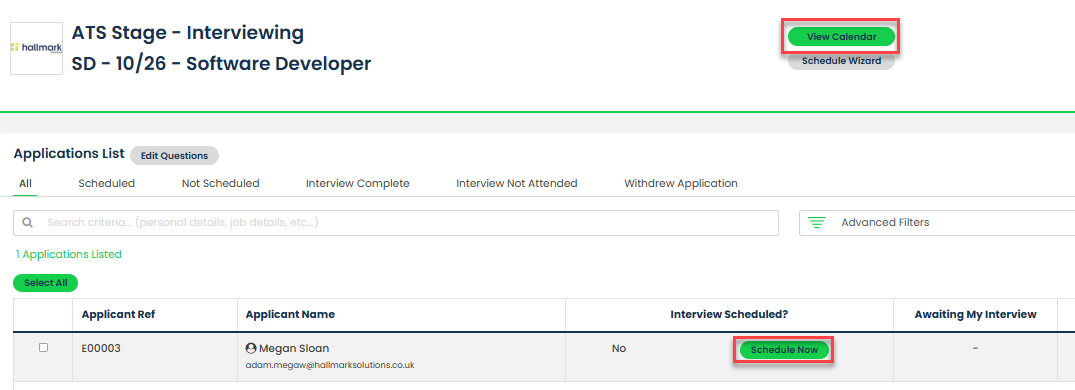
Once either option is selected, a calendar will be displayed. Dates containing available interview slots will be highlighted with a red circle.
Step 4: Assign and Book the Interview Slot
Select the required interview slot and click the pencil icon.

Select the applicant from the Application drop-down menu, then set the status to Booked.
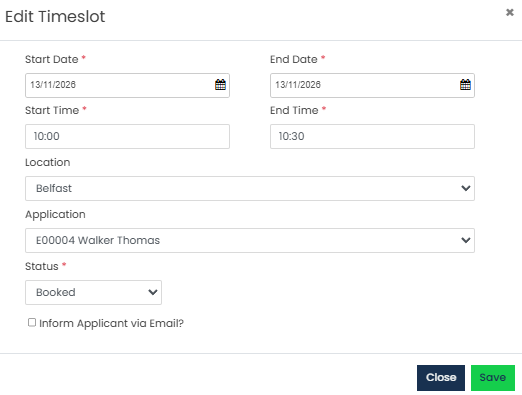
Step 5: Send a Booking Notification
To notify the applicant of the booking, tick Inform Applicant via Email?
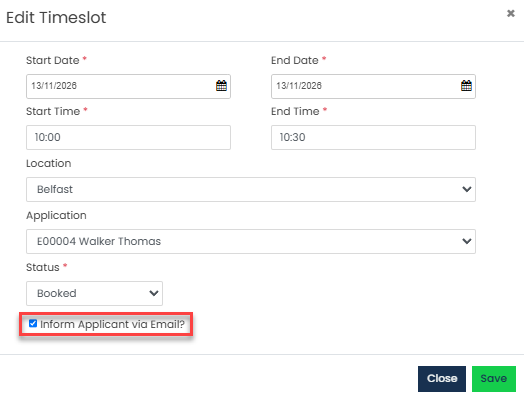
Select the appropriate interview notification template, amend the content if required, and then select Save.
The applicant will then receive the notification.
Was this article helpful?
That’s Great!
Thank you for your feedback
Sorry! We couldn't be helpful
Thank you for your feedback
Feedback sent
We appreciate your effort and will try to fix the article