Interview reviews allow reviewers to assess applicants against the configured interview questions. Reviews can be completed by Standard Users, Hiring Managers, and Managers assigned to the stage.
Step 1: Access Interviews
Select Interviews under Applicant Tracking on the admin portal.
This will display a list of jobs that currently have applicants within the Interview stage. To perform or manage interviews, select the three dots under the Actions column and choose Start/Resume against the required job.

Step 2: Open the Interview
Select Perform Interview against the applicant you wish to review.
The Perform Interview option is only available once the applicant has been booked into an interview slot.

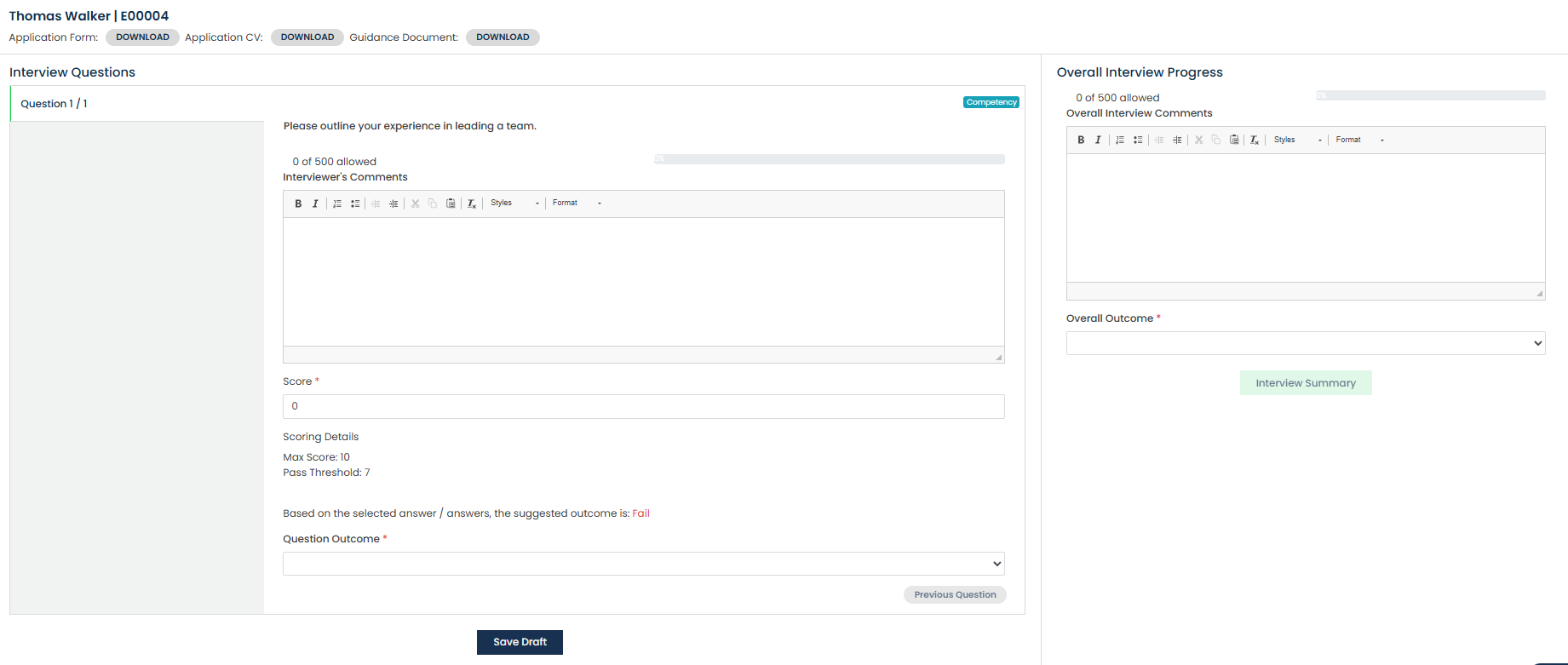
The applicant's name and applicant reference will be displayed in the top-left corner, along with options to download their application form, CV (where applicable), and any interview guidance documents that have been uploaded.
The configured interview questions will be displayed below.
Step 3: Complete the Interview Questions
Use the Next and Previous buttons to navigate through the interview questions.
For each question, interviewers must select a question outcome and score (where applicable). Interviewers can also enter comments against individual questions if required.
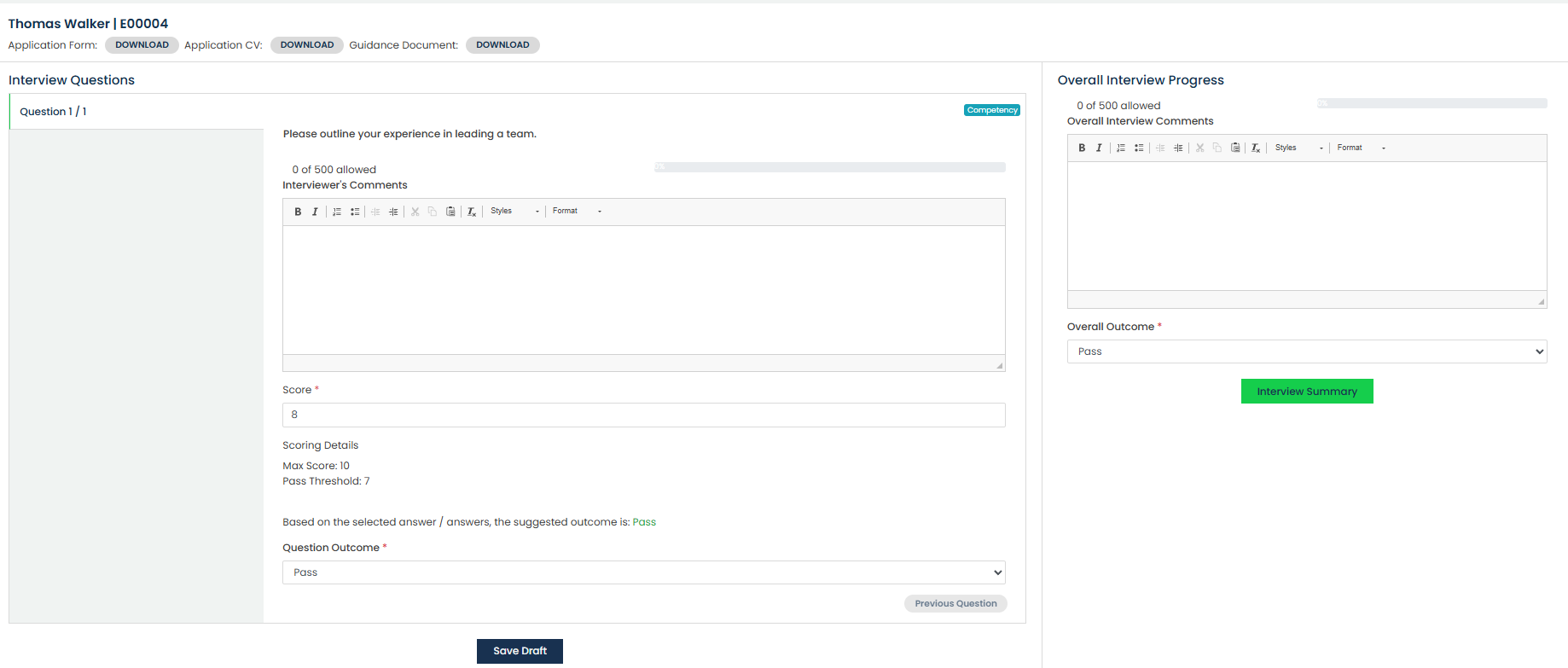
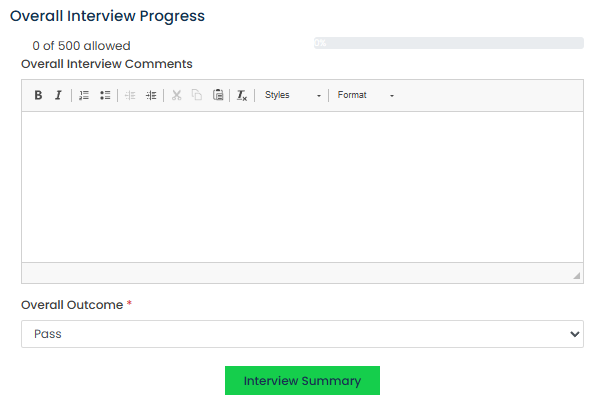
Once all question outcomes have been completed, any notes or additional comments can be entered and an Overall Outcome must be selected.
Step 4: Interview Summary
After all required information has been completed, the Interview Summary option will become available.
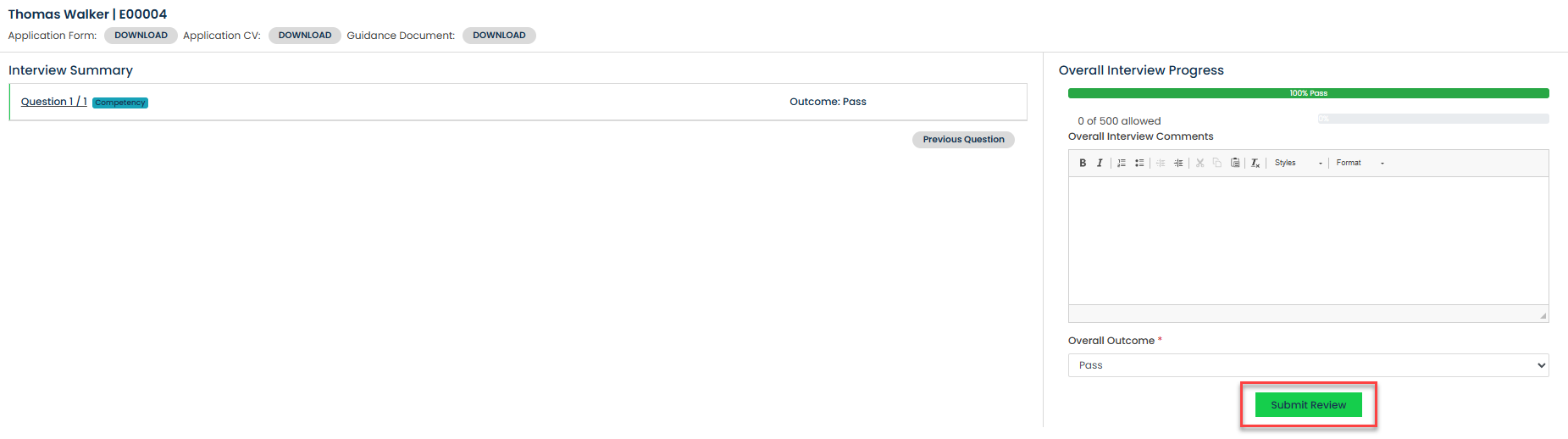
Select Interview Summary to display a summary of the interview questions and outcomes entered during the review.
To complete the interview, select Submit Review.
Step 5: Interview Progress
The Interview Progress section displays completed interviews for the applicant.
Selecting View will open a summary of the selected interview. If multiple reviewers have completed interviews for the applicant, these will be visible to Standard Users and Hiring Managers. Managers assigned to the stage can only view their own interviews.

Step 6: Interview Actions
Select the three dots under the Actions column to access additional interview options.

From here, interviewers can:
- View a completed interview
- Attach supporting documents, such as interview notes
- Unlock an interview to allow it to be completed again if required
Step 7: Record a Panel Outcome
Standard Users and Hiring Managers can record a panel outcome once interviews have been completed.
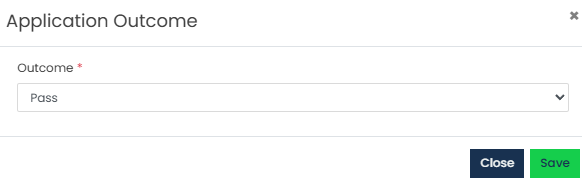
Select the checkbox beside the applicant's name, then select Actions > Application Outcome.

Choose either Pass, Fail or Did Not Attend, then select Save to record the panel outcome.
Was this article helpful?
That’s Great!
Thank you for your feedback
Sorry! We couldn't be helpful
Thank you for your feedback
Feedback sent
We appreciate your effort and will try to fix the article