There are two ways to create a job on GetGot. Non-Hark users can use the Create a Job button on the GetGot homepage, while Hark users can create the job in Hark and then upload it to GetGot to finalise the job creation process.
For Hark Users
Once created, click Upload Job to GetGot.

You will then be required to enter an email address. This email address must match the email address of a Standard User in Hark. This will also ensure the uploader user account is automatically assigned to the job.
Once uploaded, the job will be available in the Jobs List and will be marked with a yellow information icon to highlight that additional job details need to be completed. The Job Reference, Job Title, Location, Advertisement Date and Close Date will automatically be brought across from Hark.
Uploading a job from Hark to GetGot is a one-way process. Any changes made to the job in GetGot will not update the job in Hark. Likewise, any changes made to the job in Hark after it has been uploaded will not automatically update the job in GetGot.

To complete the remaining details, locate the job in the Jobs List, click the three dots under Actions and select Edit.
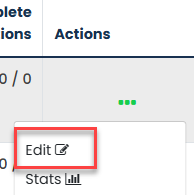
The following job details must be completed:
- Job Category
- Job Type
- Application Form Template
- Is Monitoring Required
- Is a CV Required
- Hide Organisation Documents
Important: If Is a CV Required or Hide Organisation Documents is not selected during the initial job creation stage, these settings cannot be amended after the job has been created.
In addition, the following job details can be completed:
- Postcode
- Salary Numeric Figure
- Salary Description
- Quantity of Posts Available
- Funding Organisations
- Job Summary
- Display Job in Portal
- Internal Job
- Allow Multiple Submissions from the Same User. This option is typically used for vacancies that accept applications from recruitment agencies, allowing multiple applications to be submitted on behalf of different candidates using the same email address.
Once completed, click Save.
For Non-Hark Users
Jobs can only be created by users logged into a Standard User account. Once logged in, click the Create a Job button on the GetGot homepage.
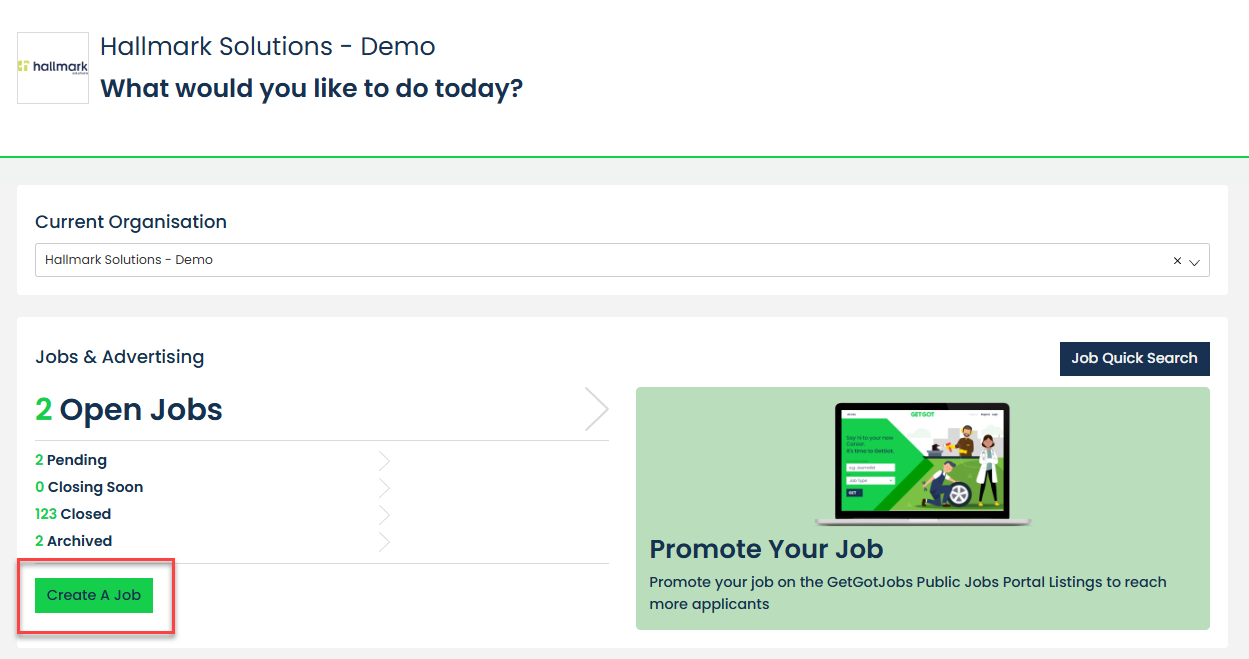
Once selected, the following job details must be completed:
- Job Reference
- Job Title
- Job Category
- Job Type
- Job Location
- Application Form Template
- Is Monitoring Required
- Is a CV Required
- Advertisement Date
- Close Date
- Close Time
- Hide Organisation Documents
Important: If Is a CV Required or Hide Organisation Documents is not selected during the initial job creation stage, these settings cannot be amended after the job has been created.
In addition, the following job details can be completed:
- Postcode
- Salary Numeric Figure
- Salary Description
- Quantity of Posts Available
- Funding Organisations
- Job Summary
- Display Job in Portal
- Internal Job
- Allow Multiple Submissions from the Same User. This is typically used by recruitment agencies to allow multiple applications to be submitted on behalf of different individuals using the same email address.
Once completed, click Save.
Was this article helpful?
That’s Great!
Thank you for your feedback
Sorry! We couldn't be helpful
Thank you for your feedback
Feedback sent
We appreciate your effort and will try to fix the article