By default, each published job displays your organisation's documents within the Downloads section of the job details page. This functionality is commonly used to save time by automatically making documents that apply to all vacancies, such as an Employee Handbook or Equality and Diversity Policy, available to applicants.
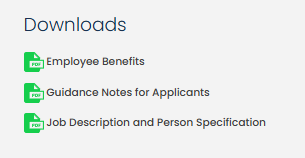
In some cases, organisation documents may not be relevant to a particular vacancy. To accommodate this, the Hide Organisation Documents setting can be enabled to prevent organisation-level documents from being displayed against the job.
When creating a job, scroll to the bottom of the Job Details section and tick Hide Organisation Documents.
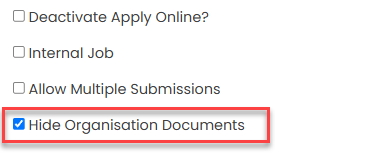
Once enabled, complete the remaining required job details and click Save to create the vacancy.
Organisation documents will then be hidden from the Downloads section for that specific vacancy.
Was this article helpful?
That’s Great!
Thank you for your feedback
Sorry! We couldn't be helpful
Thank you for your feedback
Feedback sent
We appreciate your effort and will try to fix the article