Organisation Documents can only be accessed by users logged in to an admin account. Depending on the document type selected, these documents may be available to applicants or reviewers at different stages of the recruitment process.
Step 1: Access Organisation Documents
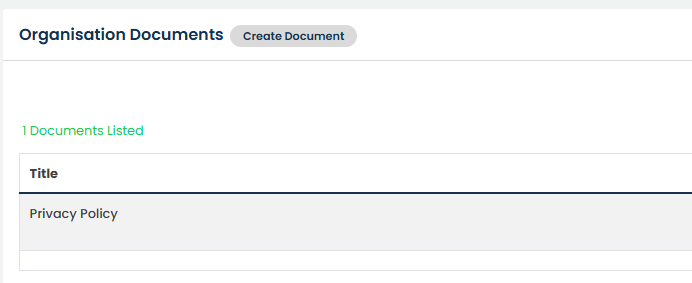
From the top menu bar, select Organisation, then choose Organisation Documents.
Step 2: Create a New Document
Select Create Document to add a new organisation document.
Step 3: Complete the Document Details
Enter the document title, upload the document, and select the appropriate document type.
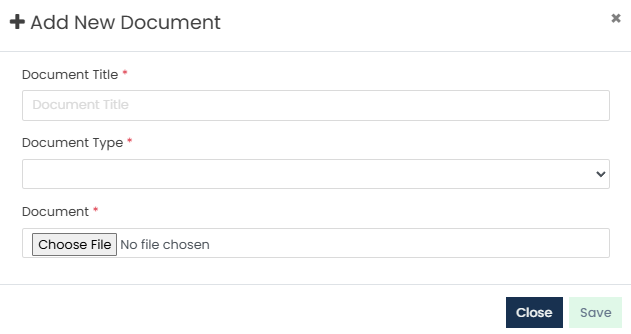
The following document types are available:
- Job Document - Available to applicants under Downloads when viewing a vacancy, unless the Hide Organisation Documents setting has been enabled for the job.
- Shortlisting Guidance Document - Available to reviewers during the shortlisting stage.
- Interviewing Guidance Document - Available to reviewers during the interview stage.
Only one Shortlisting Guidance Document and one Interviewing Guidance Document can be stored in Organisation Documents at any time.
Step 4: Save the Document
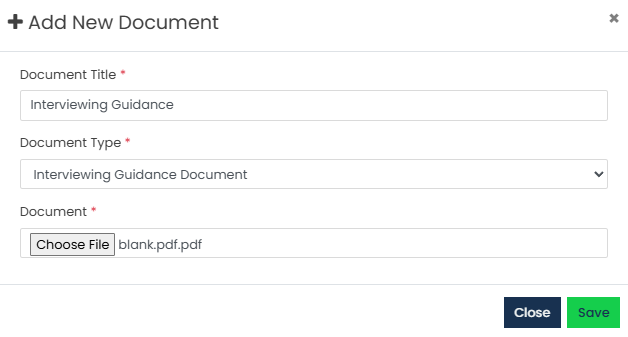
Once all required information has been completed, select Save.
Step 5: Manage Your Documents
The document will now appear in the Organisation Documents list.
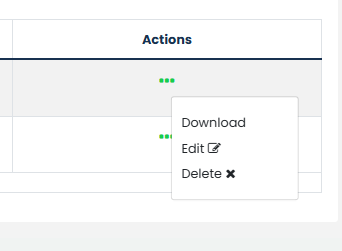
Select the three dots under the Actions column to edit, delete, or download the document as required.
Was this article helpful?
That’s Great!
Thank you for your feedback
Sorry! We couldn't be helpful
Thank you for your feedback
Feedback sent
We appreciate your effort and will try to fix the article