Criteria Questions are added on a job-by-job basis and can be used to gather information from applicants that supports the shortlisting process.
Criteria Questions can only be managed by users logged in with a Standard User account that has access to the vacancy.

Criteria Questions can only be added, edited, copied or removed while a job is in a Pending status. Once a job is live, Criteria Questions can no longer be managed.
Adding Criteria Questions
Criteria Questions are added on a job-by-job basis and can be used to gather information from applicants that supports the shortlisting process. Questions added under the Criteria Questions section are classified as shortlisting criteria and can be used to provide relevant managers with limited access to review applicant responses.
Criteria Questions are only available when the application form assigned to the job contains a Criteria tab. If the selected application form does not include a Criteria tab, the Criteria Questions section will not be available and criteria questions cannot be added.
Criteria Questions can only be added while the job is in a Pending status.
Copying Criteria Questions
If criteria questions have already been configured on another vacancy, they can be copied into the current job rather than recreated manually.
Navigate to the Criteria Questions section and click Copy Questions.

Select the job you wish to copy the questions from. You can then either tick the checkbox beside individual questions or select All to copy all available questions.
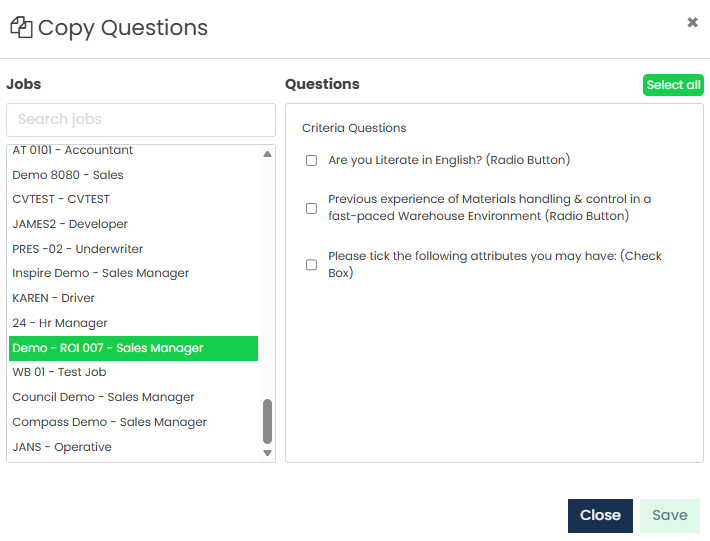
Before saving, the questions can be reordered by dragging and dropping them into the required sequence.
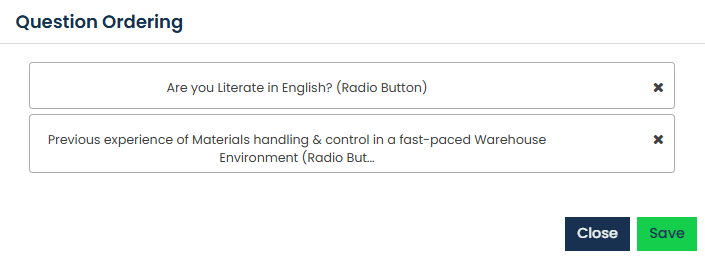
Once complete, click Save to add the selected questions to the vacancy.
Creating a New Criteria Question
To create a new criteria question, navigate to the Criteria Questions section and click Add Question.

Select the required question type. More information on the available question types can be found in the Criteria Question Types section below.
All question types require the following information to be completed:
- Question Heading - An optional heading used to group related questions, such as Essential Criteria or Driving Licence.
- Question - The question that will be presented to applicants. This field is mandatory.
- Mandatory Question - When enabled, applicants must answer the question before they can submit their application.
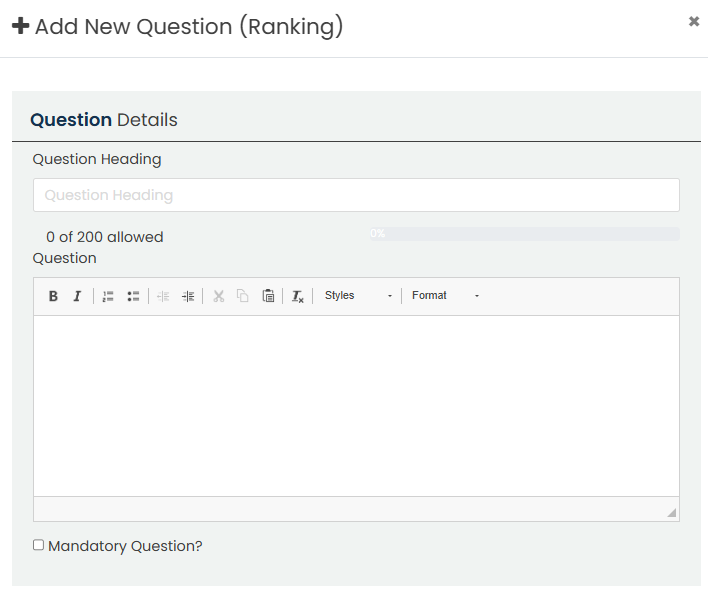
Questions can be previewed prior to saving and, where multiple questions exist, can be reordered by dragging and dropping them into the required sequence.
Once completed, click Save.
Criteria Question Types
The following question types are available:
- Check Box - Allows applicants to select one or more answers from a list of options.
- Date - Requires applicants to enter a date response.
- Date Range - Requires applicants to enter a start and end date. Limits can be configured in days, months or years.
- Drop Down - Allows applicants to select a single option from a drop-down list.
- Experience - Requires applicants to enter employment or experience details that are automatically totalled to calculate overall experience.
- Radio Button - Allows applicants to select one answer from a predefined list of options.
- Text Area - Designed for longer responses where applicants are required to provide detailed information.
- Text Box - Designed for shorter responses, typically where only a brief answer is required.
It is important to select the correct question type. Text Areas should be used for longer responses, while Text Boxes should be used for short answers.
Conditional Questions
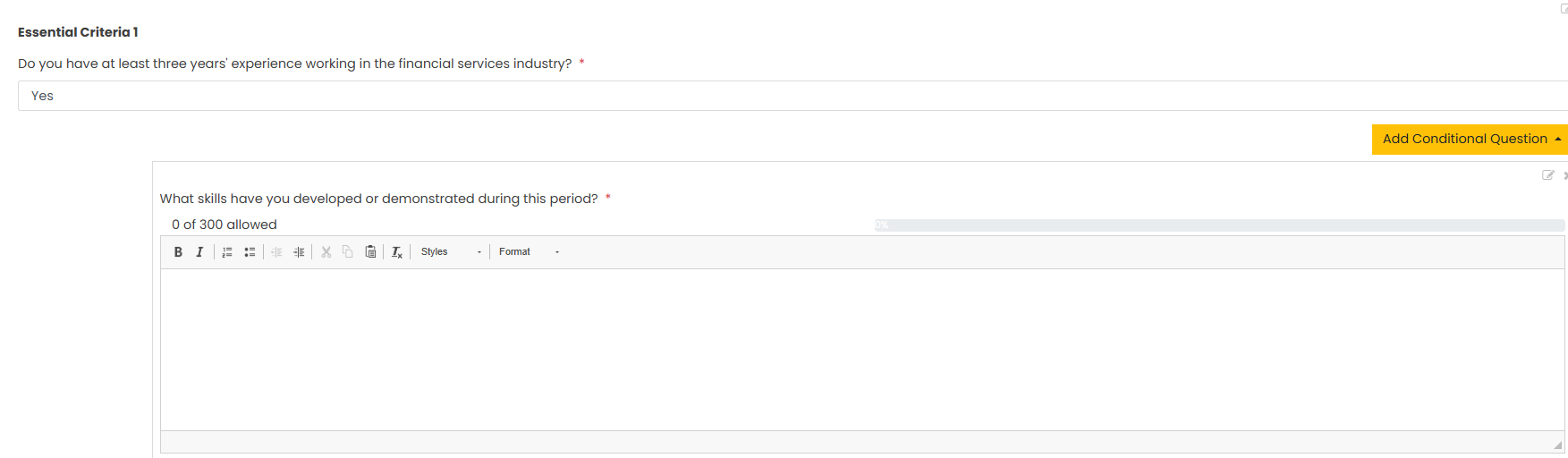
Conditional Questions can be created using Drop Down and Radio Button question types. These questions only appear when an applicant selects a specific answer.
Step 1: Enable Nested Questions
When creating or editing a Drop Down or Radio Button question, configure the available answer options.
For the answer option that should trigger an additional question, tick the Nested Questions option.
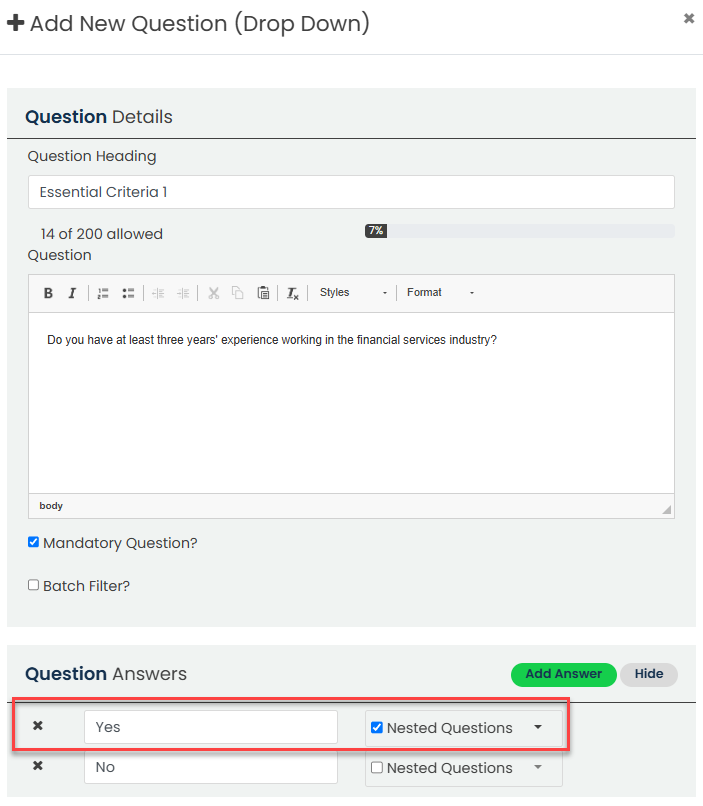
Step 2: Save the Parent Question
Once configured, click Save.
The parent question will now display within the Criteria Questions section.
Step 3: Add the Conditional Question
Locate the answer option that has Nested Questions enabled and click Conditional Question.

Select the required question type and complete the question details using the same process as a standard criteria question.
Step 4: Save the Conditional Question
Click Save to add the conditional question.
The additional question will only be displayed to applicants who select the answer option configured with Nested Questions.
Was this article helpful?
That’s Great!
Thank you for your feedback
Sorry! We couldn't be helpful
Thank you for your feedback
Feedback sent
We appreciate your effort and will try to fix the article