Shortlisting questions can be used to assist reviewers when assessing applicants during the Shortlisting stage. Once created, these questions are displayed to all reviewers assigned to the stage.
Standard Users and Hiring Managers assigned to the stage can create and manage questions directly from the Shortlisting stage. Alternatively, questions can be configured when creating or editing the workflow.
Step 1: Access Shortlisting
Select Shortlisting under Applicant Tracking on the admin portal.
This will display a list of jobs that currently have applicants within the Shortlisting stage. To create or manage shortlisting questions, select the three dots under the Actions column and choose Start/Resume against the required job.

Step 2: Open the Question Configuration Screen
Select Edit Questions to view existing shortlisting questions or create new ones.
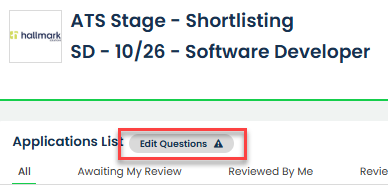
If no review questions have been created, a warning triangle will be displayed with the message No Review Questions have been created.
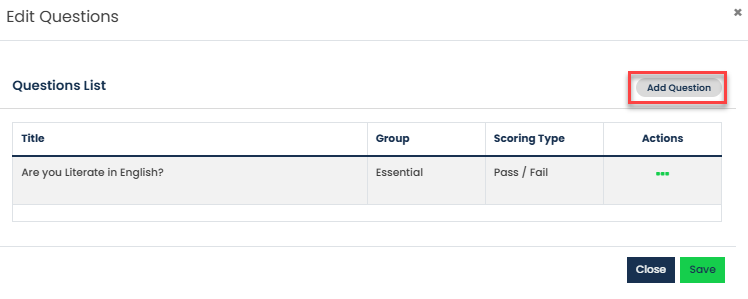
Any existing questions will be displayed within the questions list. To amend or remove a question, select the three dots under the Actions column and choose Edit or Delete as required.
To create a new question, select Add Question. A pop-up window will appear allowing you to configure the question.
Step 3: Add a Question
Once Add Question has been selected, use the Question Source drop-down menu to choose the source of the question.
The following sources are available:
- Application Form
- Criteria Section
- Additional Section
- Competency Questions
- Custom Question
Selecting Application Form, Criteria Section, or Additional Section allows you to choose questions that already exist within the application process, including any responses submitted by applicants.
Selecting Competency Questions allows you to choose from competency questions configured within the system. Alternatively, Custom Question can be used to create a new review question specifically for the shortlisting process.
Once a question source has been selected, choose the required question and decide whether it should be a Grouped Question.
Grouped Questions allow multiple questions to be reviewed together as a single review item. To create a grouped question, tick Grouped Question, then use the Question Source and Question drop-down menus to find and add additional questions by selecting Add to Group.
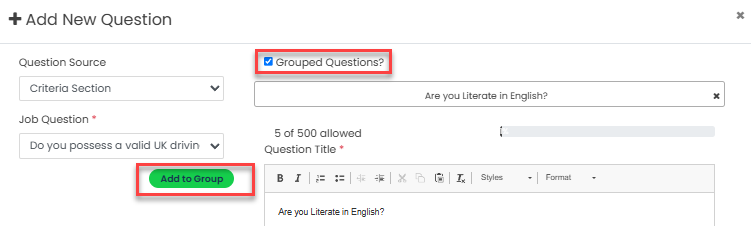
If the question should be reviewed individually, leave Grouped Question unticked.
Step 4: Configure Scoring
Select the appropriate Question Group.
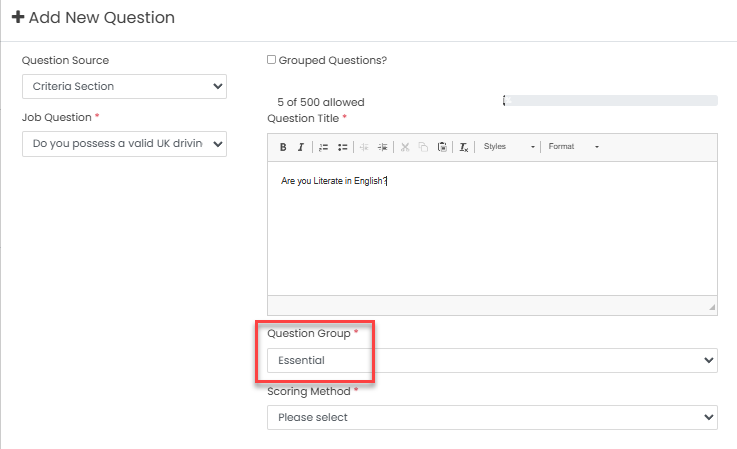
Next, select the required Scoring Method.
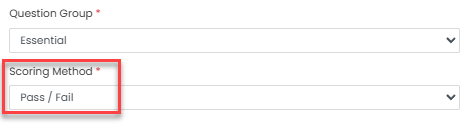
If Pass / Fail is selected, reviewers will simply determine whether the applicant passes or fails the question.
If Option Weighting is selected, reviewers will score the applicant's response. Based on the score entered, the system will provide a recommended outcome of pass or fail.
When Option Weighting is selected, the following additional fields must be completed:
- Maximum Score – The highest score a reviewer can award.
- Score Threshold – The score required to achieve a recommended pass outcome.
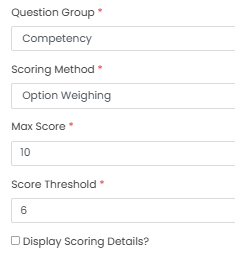
You can also choose whether these scoring details are visible to reviewers by selecting the relevant checkbox.
Step 5: Save the Question
Once all required information has been completed, select Save.
The question will then be added to the list of shortlisting questions and will be available to all reviewers.
Was this article helpful?
That’s Great!
Thank you for your feedback
Sorry! We couldn't be helpful
Thank you for your feedback
Feedback sent
We appreciate your effort and will try to fix the article