Application Forms can only be accessed by admin users with the appropriate permissions. These permissions include the ability to duplicate application forms, edit forms that are not currently in use, delete forms that are not currently in use, and control whether forms are visible when assigning an application form to a job.
Application Forms contain pre-built sections and questions that applicants complete as part of the application process. Once an application form has been assigned to a job, it will determine the information collected from applicants.
Step 1: Access Application Forms
From the top menu bar, select Organisation, then choose Application Forms.
Step 2: Duplicate an Existing Application Form
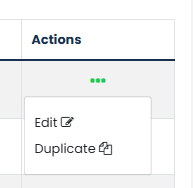
Admin users cannot create a new application form from scratch. Instead, select the three dots under the Actions column beside an existing form and click Duplicate.
Enter a name for the new application form and select Duplicate.
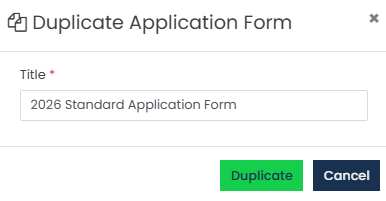
This name will be displayed when selecting an application form during job creation or when editing a vacancy.
Step 3: Edit the Application Form
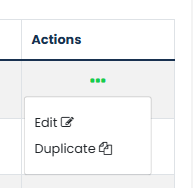
Once duplicated, select the three dots under the Actions column and click Edit.
From here, you can configure the application form structure, including the tabs displayed to applicants and the content within each tab.
Step 4: Edit Application Form Details
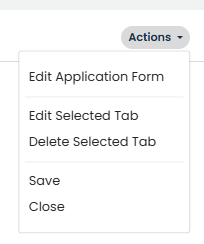
To update the application form settings, select Actions in the top-right corner and click Edit Application Form.

The following details can be updated:
- Title – The name displayed when selecting an application form for a job.
- Contact Details – Contact information associated with the application form.
- Description – Additional information relating to the application form.
- Is Visible? – Determines whether the application form is available for selection when creating or editing jobs.
Once all required changes have been made, select Save.
Step 5: Add Tabs
To add a new tab, select + Add Tab.
Enter the tab title and choose whether the tab should be Visible and/or Mandatory.
You should then select the appropriate Tab Type.
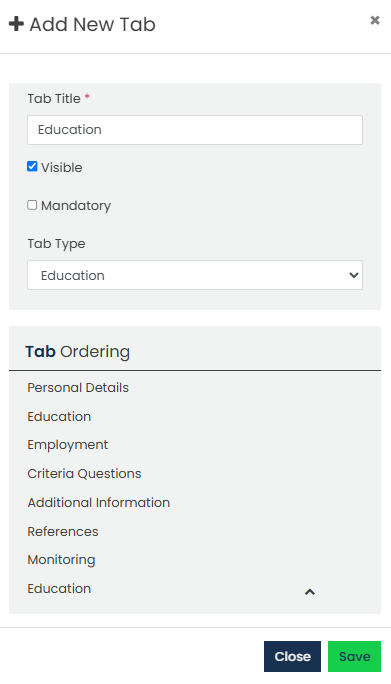
Only the Standard tab type can be selected more than once.
It is important to select the correct tab type for Education, Employment, and Referee sections, as this allows applicants to automatically populate previously saved responses where available.
The Monitoring tab type should be used for monitoring questions, as this is the information available to users with the Monitoring user role.
Step 6: Edit or Delete Tabs
To edit a tab, select the required tab, then choose Actions > Edit Selected Tab.

To remove a tab, select the required tab, then choose Actions > Delete Selected Tab.
Step 7: Edit Tab Content
Certain tab types contain configurable sections and questions.
To edit these sections, select the pencil icon beside the relevant section or question.
From here, questions can be added, edited, reordered, marked as mandatory, or configured as required.
Related documents can also be uploaded against individual sections, allowing supporting information or guidance documents to be made available to applicants where appropriate.
To add a related document, scroll to the bottom of the relevant tab to the Related Documents section and select Add Document.

Enter a Document Title, upload the required document, then select Save.
Step 8: Save Your Changes
Once all changes have been completed, select Actions > Save and then Close.
Was this article helpful?
That’s Great!
Thank you for your feedback
Sorry! We couldn't be helpful
Thank you for your feedback
Feedback sent
We appreciate your effort and will try to fix the article