Email Templates can only be accessed by users logged in to an admin account.
Step 1: Access Email Templates
From the top menu bar, select Organisation, then choose Email Templates.
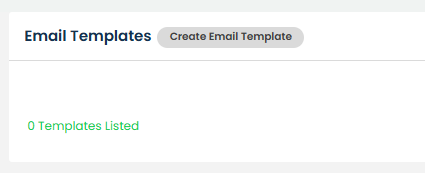
Step 2: Create a New Email Template
Select Create Email Template.
Step 3: Complete the Email Template Details
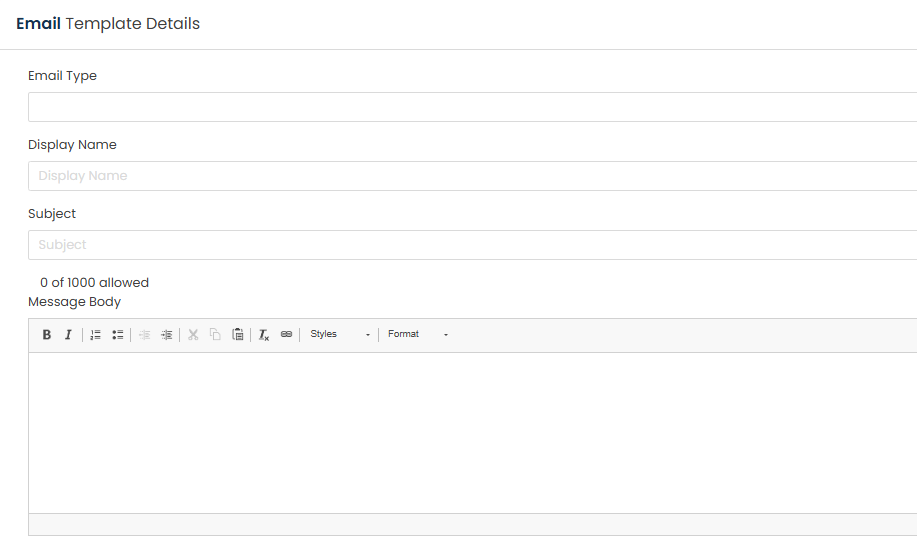
Select the appropriate Email Type from the drop-down list.
The following email types are available (excluding ATS templates):
- Applicant Email Alert – Sends a reminder to applicants who have registered for a vacancy but have not yet submitted their application.
- Applicant Job Registration – Sent to applicants who have registered using a My Profile account.
- Applicant Job Registration (PIN) – Sent to applicants who have registered using a PIN account.
- Application Submission – Sent when an applicant successfully submits their application.
- HR Email Alert – Sends notifications to HR users regarding vacancy closing dates.
- Referee Details Request – Sent to referees when additional information is required.
- Referee Details Submission – Sent to HR users when a referee submits their response.
Each email type can only be selected once within your organisation.
Complete the remaining fields as required:
- Display Name – The name used to identify the email template within GetGot.
- Subject – The subject line that will appear in the email sent to recipients.
- Description – The content of the email template (max. 1000 words).
Merge fields can be used within the Subject and Description fields to automatically populate information such as applicant, referee, vacancy, or organisation details.
To view the available merge fields, select Show.
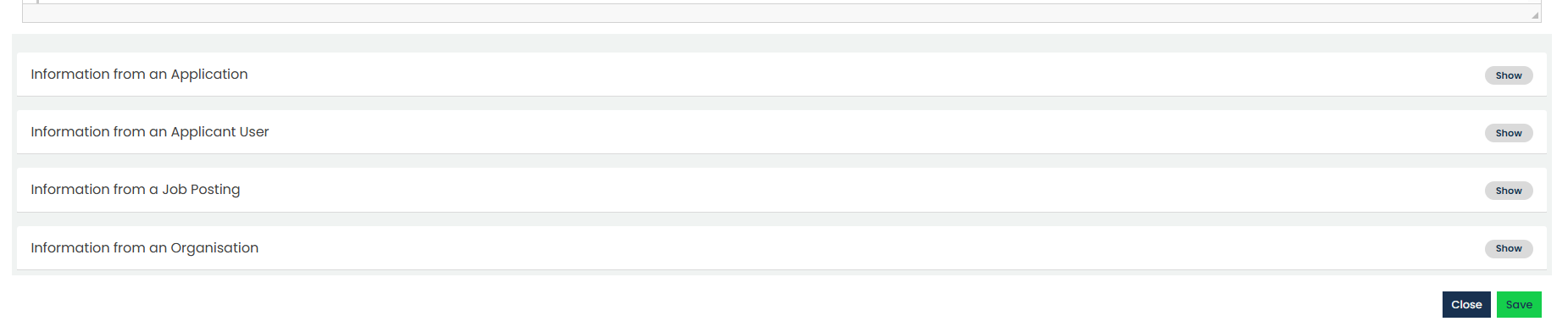
Clicking a merge field will automatically copy it to your clipboard, allowing you to paste it into the Subject or Description where required.
Merge fields are displayed within square brackets, for example [Applicant Name].
Step 4: Save the Email Template
Once all required information has been completed, select Save.
Step 5: Manage Email Templates
The email template will now appear in the Email Templates list.
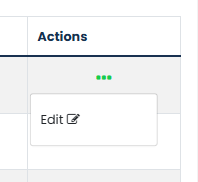
To update an email template, select the three dots under the Actions column, then click Edit beside the relevant template.
Was this article helpful?
That’s Great!
Thank you for your feedback
Sorry! We couldn't be helpful
Thank you for your feedback
Feedback sent
We appreciate your effort and will try to fix the article