Organisation GDPR Messages can only be accessed and managed by users logged in to an admin account. The Organisation GDPR Message is presented to applicants applying to jobs within your organisation. Applicants will only be required to accept the message once, unless a new version is created or the Force the applicant to always accept setting is enabled.
Step 1: Access the GDPR Message
From the top menu bar, select Organisation, then choose Data Protection.
Step 2: Edit the GDPR Message
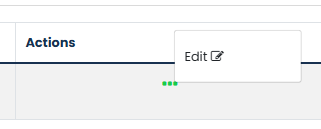
Select Edit after clicking the three dots under actions to view and amend your organisation's GDPR message.
Step 3: Update the Message Content
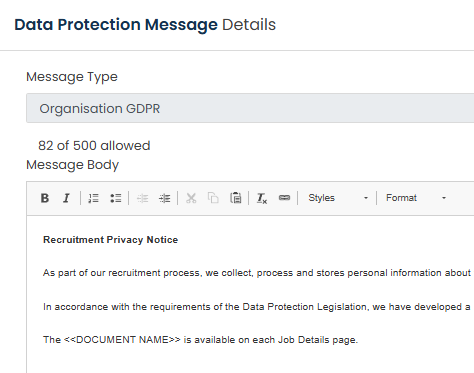
Enter or update the content within the Message Body field.
The GDPR message can contain up to 500 words.
Step 4: Configure Applicant Acceptance
If you want applicants to accept the GDPR message each time they begin a new application, tick the Force the applicant to always accept checkbox.
If this option is not selected, applicants will only be required to accept the GDPR message once, unless a new version of the message is created.
Step 5: Save the GDPR Message
Once all required changes have been made, select Save.
Was this article helpful?
That’s Great!
Thank you for your feedback
Sorry! We couldn't be helpful
Thank you for your feedback
Feedback sent
We appreciate your effort and will try to fix the article