Job Categories are predefined across all organisations within GetGot, however each organisation can choose which categories are available for use within their own account. Job Sub-Categories allow organisations to create more specific classifications beneath a parent Job Category and are unique to each organisation.
Both Job Categories and Job Sub-Categories can only be managed when logged in to an admin account.
Step 1: Access Job Categories
From the top menu bar, select Organisation, then choose Job Categories.
Step 2: Review Active Job Categories
A list of all available job categories will be displayed.
The Active? column shows whether each category is currently available within your organisation by displaying Yes or No.
Step 3: Activate or Deactivate a Job Category
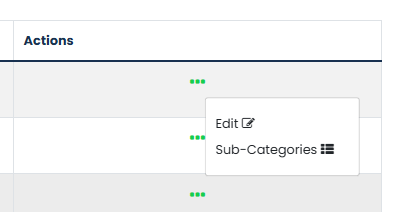
Select the three dots under the Actions column next to the relevant Job Category, then select Edit.
Tick or untick the Active? checkbox as required, then select Save.
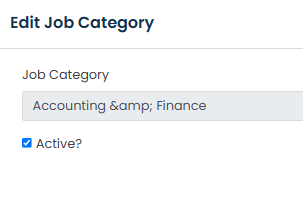
Once activated, the category will be available for selection when creating and managing jobs within your organisation.
Step 4: Access Job Sub-Categories
Job Sub-Categories can be managed from either the Job Categories section or the Job Sub-Categories section within Organisation on the top menu bar.
To manage sub-categories for a specific Job Category, navigate to Organisation > Job Categories, select the three dots under the Actions column beside the relevant Job Category, then select Sub-Categories.
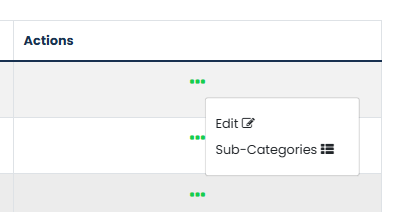
Alternatively, navigate to Organisation > Job Sub-Categories to view and manage all Job Sub-Categories within your organisation.
Step 5: View Existing Sub-Categories
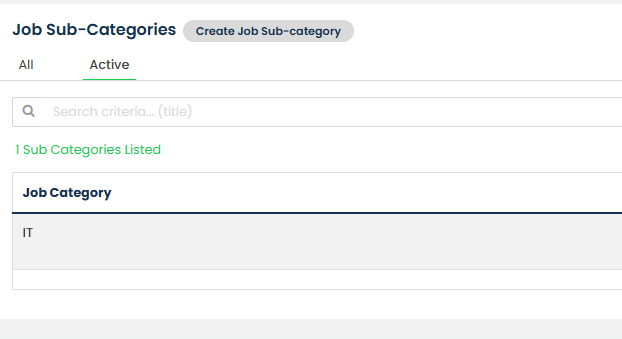
A list of all Job Sub-Categories will be displayed.
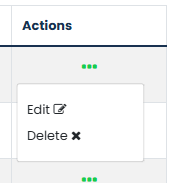
To make a sub-category available or unavailable when managing jobs, select the three dots under the Actions column and choose Edit. Tick or untick the Active checkbox as required, then select Save.
Sub-categories can also be removed by selecting Delete from the Actions menu.
Step 6: Create a New Job Sub-Category
Within the Job Sub-Categories section, select Create Job Sub-Category.
Enter the name of the sub-category, select the associated Job Category, and tick Active if the sub-category should be available for selection when creating or managing jobs.
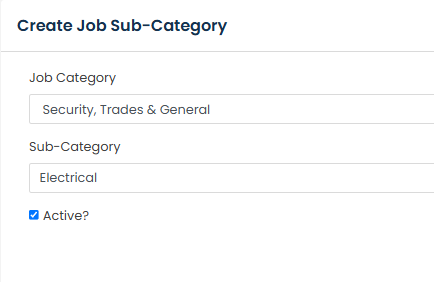
Select Save to create the new sub-category.
Was this article helpful?
That’s Great!
Thank you for your feedback
Sorry! We couldn't be helpful
Thank you for your feedback
Feedback sent
We appreciate your effort and will try to fix the article