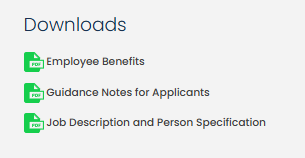
Job Related Documents allow supporting files, such as Job Descriptions, Person Specifications or Application Guidance documents, to be uploaded against a vacancy. These documents are then made available to applicants via the Downloads section when viewing the job details.
Step 1: Access the Job Related Documents Tab
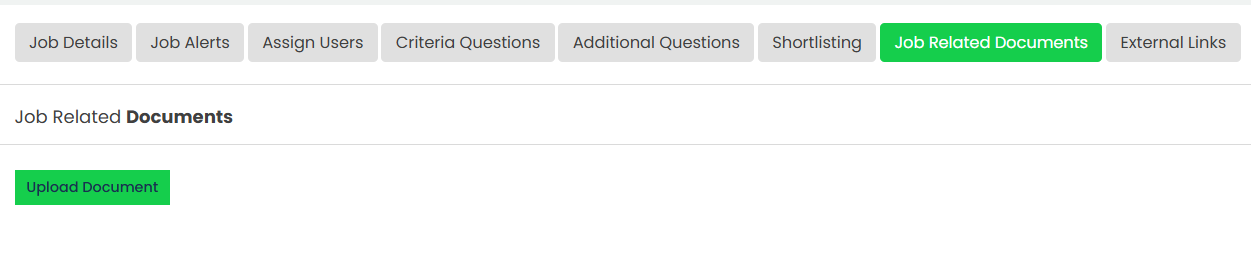
When creating a new job, navigate to the Job Related Documents tab.
Alternatively, locate the relevant job in the Jobs List, click the three dots under Actions, select Edit, and then navigate to the Job Related Documents tab.
Step 2: Upload a Document
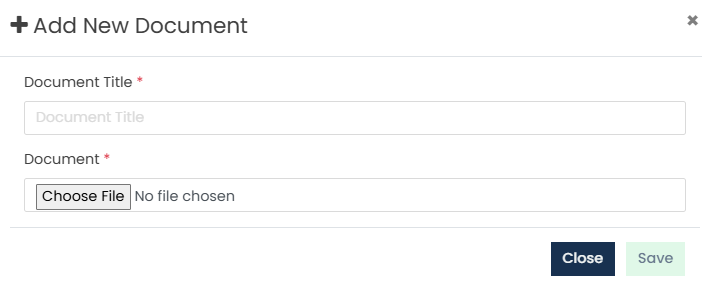
Click Upload Document, enter a document title and upload the relevant file.
Step 3: Save the Document
Once completed, click Save. The document will then be available to applicants under the Downloads section when viewing the job details.
Step 4: Manage Job Related Documents
Uploaded documents will be displayed within the Job Related Documents tab. Select the three dots under the Actions column to edit, download or delete a document as required.
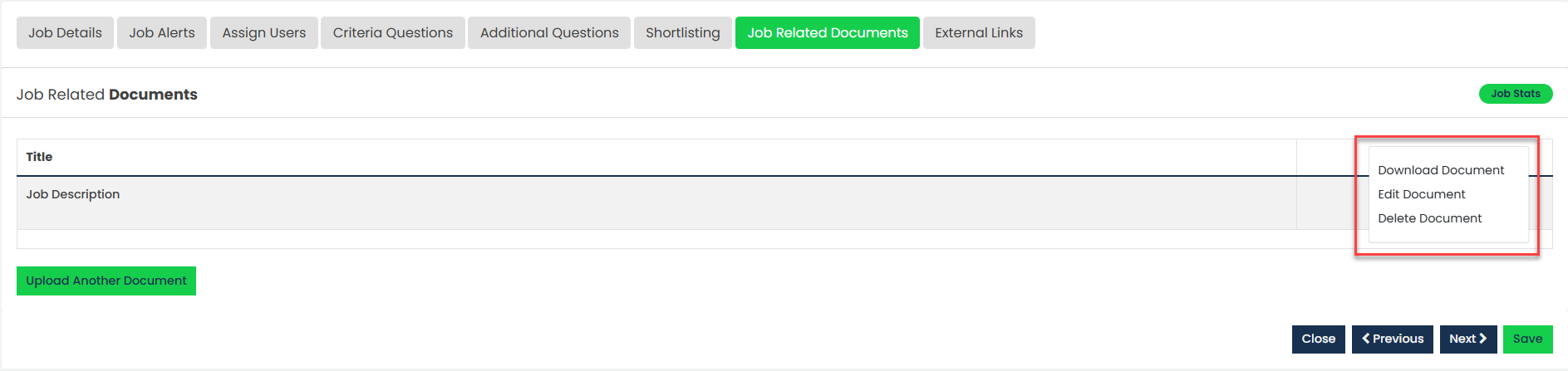
To upload additional documents, click Upload Another Document and repeat the process. Once all documents have been added or updated, click Save.
Was this article helpful?
That’s Great!
Thank you for your feedback
Sorry! We couldn't be helpful
Thank you for your feedback
Feedback sent
We appreciate your effort and will try to fix the article