Internal Jobs allow organisations to create vacancies that can be accessed using a private URL. These vacancies can be restricted to internal candidates.
Internal Jobs can only be configured by users logged in with a Standard User account that has access to the vacancy.
Step 1: Access the Internal Job Setting
Locate the relevant job in the Jobs List. Please note that the job must be in a Pending status before it can be made internal.
To edit the job, click the three dots under the Actions column and select Edit.
Step 2: Enable the Internal Job Setting
Scroll to the bottom of the Job Details section and tick the Internal Job checkbox.
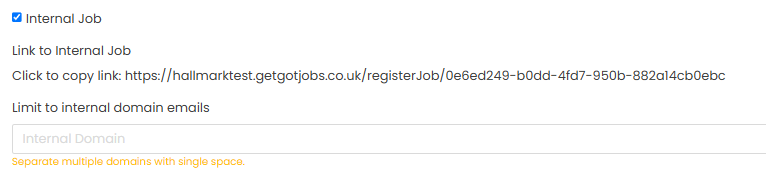
This allows your organisation to generate a private URL that can be distributed internally. The vacancy will only be accessible using this URL.
Step 3: Restrict Applications by Email Domain (Optional)
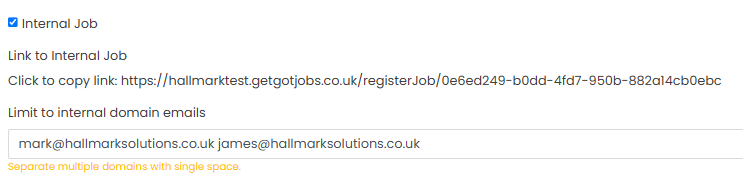
To limit applications to users with a specific internal email domain, enter the domain into the Internal Domain Email field.
The email domain should be entered in the format shown in the example below.
Step 4: Save the Changes
Once completed, click Save.
The job will then be available via the generated internal URL, with visibility and access controlled by the settings configured above.
Was this article helpful?
That’s Great!
Thank you for your feedback
Sorry! We couldn't be helpful
Thank you for your feedback
Feedback sent
We appreciate your effort and will try to fix the article