Offer letters can be configured and sent during the onboarding process by either an assignned Standard User or Hiring Manager. Offer letter templates can be used as a starting point and amended as required before being sent to the successful applicant.
Step 1: Access Onboarding
From the Admin Portal, navigate to Applicant Tracking > Onboarding.
This will display a list of jobs that currently have applicants in the Onboarding stage. To view and send offer letters, select Start against the relevant job.

Step 2: Configure the Offer Letter
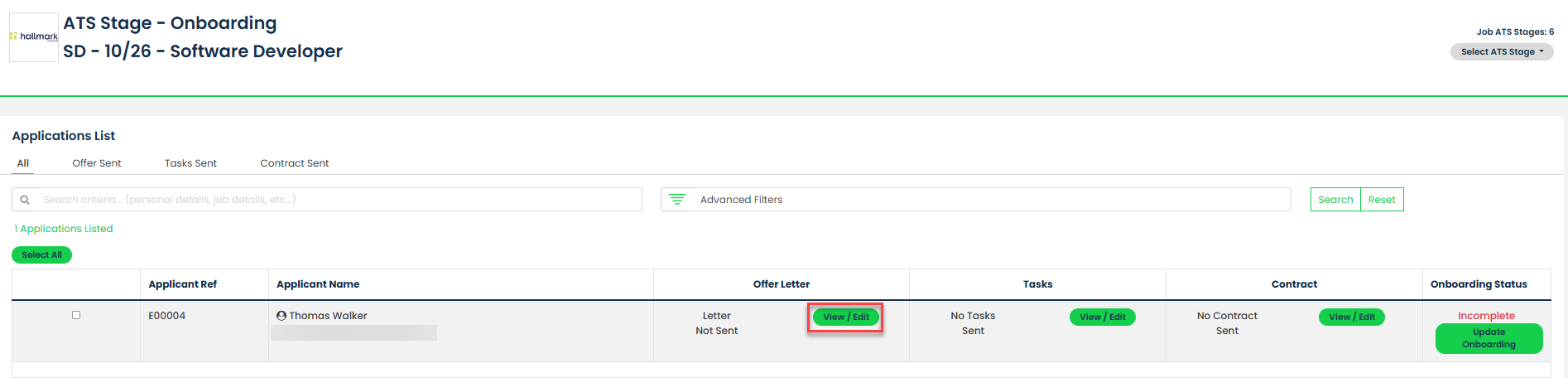
Under the Offer Letter column, select View/Edit against the relevant applicant.
If an offer letter template has been configured, it will be displayed in a pop-up window.
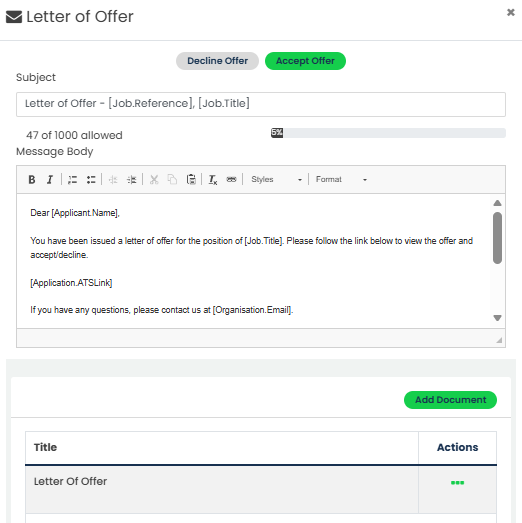
Review and amend the offer letter as required. Supporting documents can also be attached by selecting Add Document.
Step 3: Send the Offer Letter
Once the offer letter is complete, select Save.
The offer letter will be sent to the applicant and will be available for them to review and Accept or Decline within their applicant profile.
After the offer has been sent, the text Letter Sent will be displayed under the Offer Letter column against the applicant.

Step 4: Manage an Existing Offer
To view or manage an offer that has already been sent, select View/Edit against the applicant.
A pop-up window will appear displaying the available offer management options:
- View Offer – View the offer letter that was sent to the applicant.
- Approve Offer – Accept the offer on behalf of the applicant.
- Decline Offer – Decline the offer on behalf of the applicant.
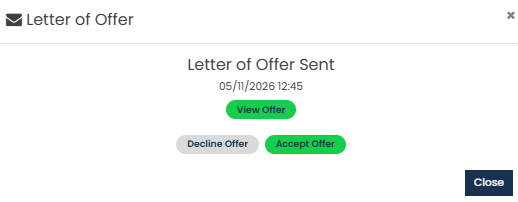
Once the offer has been accepted, green confirmation text will be displayed under the Offer Letter column. Onboarding tasks can then be issued to the applicant, and a contract can be generated and sent as part of the onboarding process.

Was this article helpful?
That’s Great!
Thank you for your feedback
Sorry! We couldn't be helpful
Thank you for your feedback
Feedback sent
We appreciate your effort and will try to fix the article