You can update your profile information at any time. You don't even need to be applying for a vacancy.
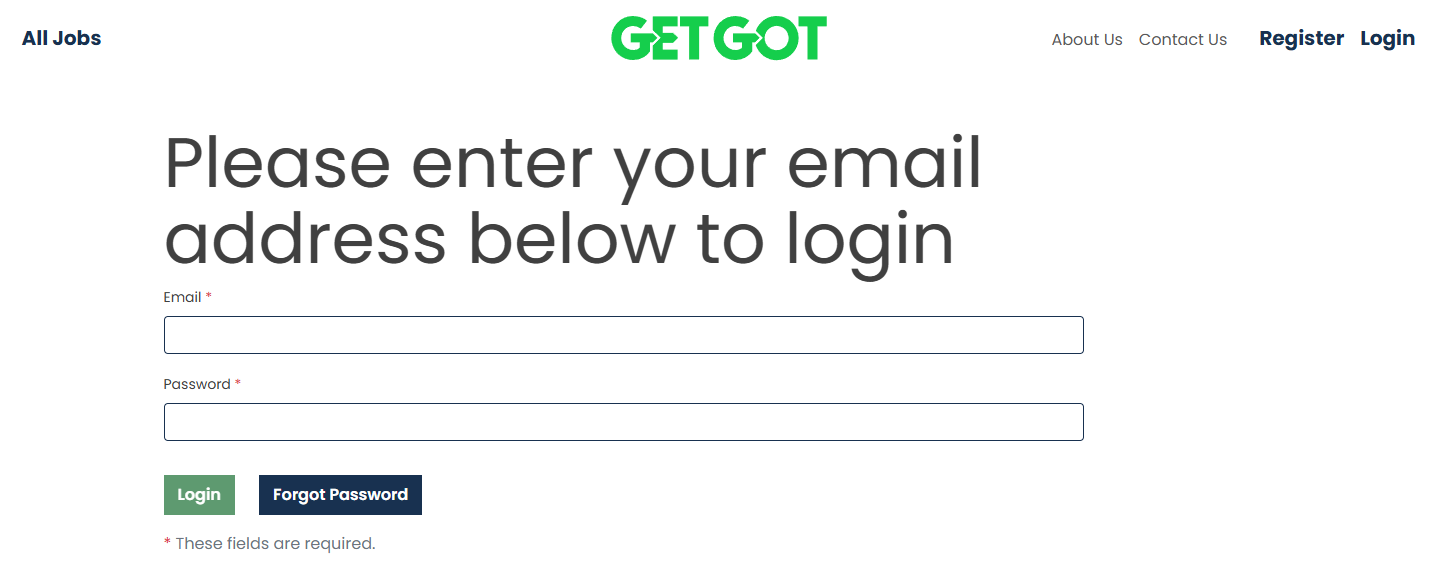
Log into your profile by clicking Login on the top right of the GetGot toolbar.

Enter your email address and password and click Login. If you can’t remember your password please click here.

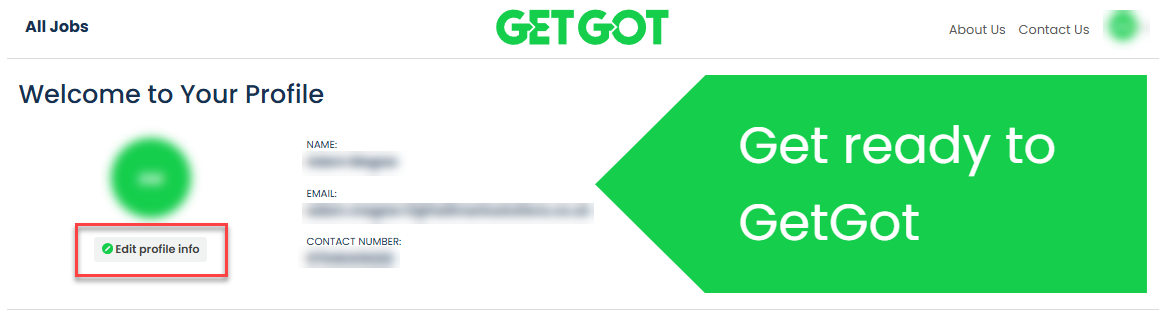
This will open your Profile page, click the Edit profile info button to amend your personal details.

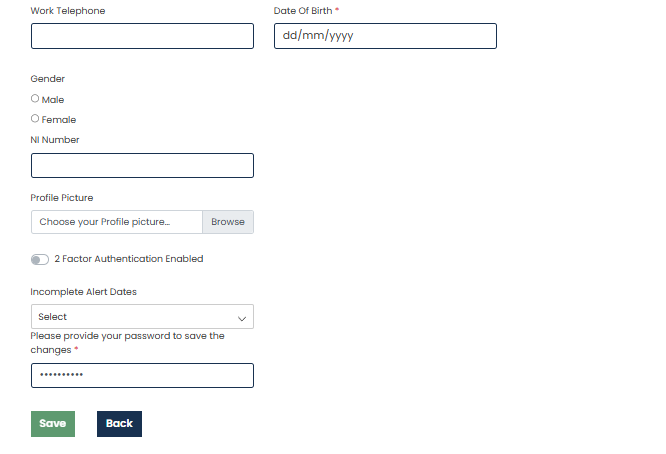
This will open up your main details page. Here you can change your personal information, choose a profile picture and set up security features such as 2 factor authentication.

Any changes made will require you to enter your password to confirm the changes. Click Save to complete the changes.

On your Profile page, there is a section called Your Resources. This area is used to set your preferences for notifications as well as completing your saved answers for re-use in application forms.

Under Saved Answers you can enter responses for your Education answers, Employment answers and Referees details.
Simply click on each section, for example, Education answers. This will open the Education Profile template as shown below.

Fill in your details and then click Save at the bottom of the page. These answers will now be stored on your Profile for re-use on individual application forms where the autofill feature has been enabled. Repeat this for the other sections.
Please Note: This will not update your information on open applications.
Update Profile via Job Application
You can also choose to populate your Profile using the answers provided in an individual job application by clicking Update and Proceed. This option will appear after clicking Submit on the application.

Was this article helpful?
That’s Great!
Thank you for your feedback
Sorry! We couldn't be helpful
Thank you for your feedback
Feedback sent
We appreciate your effort and will try to fix the article