Users can create job sub-categories which are related to a parent Job Category. Multiple sub-categories can be aligned to a job category. Sub categories are unique to each organisation. These sub-categories can be created from two locations: the job categories tile as shown above or the Job Sub-Categories tile on the dashboard.
From the Job Category List:
Click on the Sub-Categories button next to the relevant job category.

This will show any sub categories that are currently set up for the overarching job category.
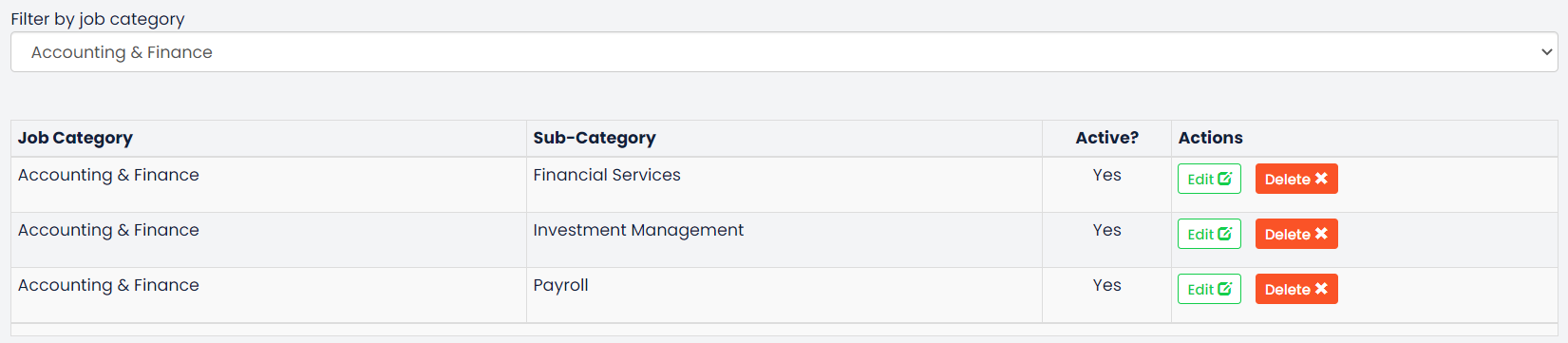
These can be amended or removed by clicking the Edit or Delete buttons.
A new sub-category can also be created by clicking on the Create Job Sub-category button.
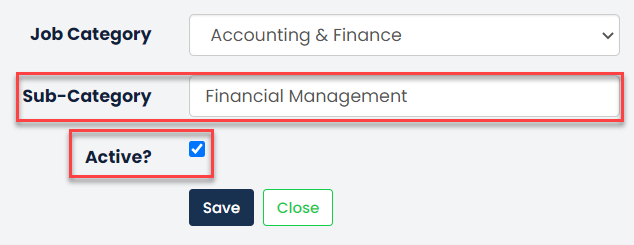
Just enter the name of this into the Sub-Category textbox and ensure the Active? tick box is selected then click Save.
From the Job Sub-Categories Tile:
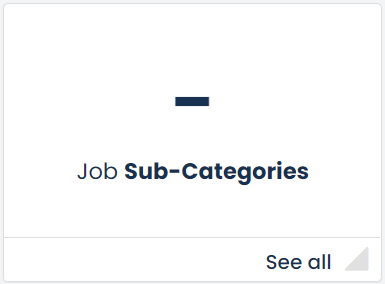 These sub-categories can also be setup through the Job Sub-Categories tile on the dashboard. This will present a list of all job sub-categories that have been set up in the system. From here, a user can edit, delete, or create new job sub-categories.
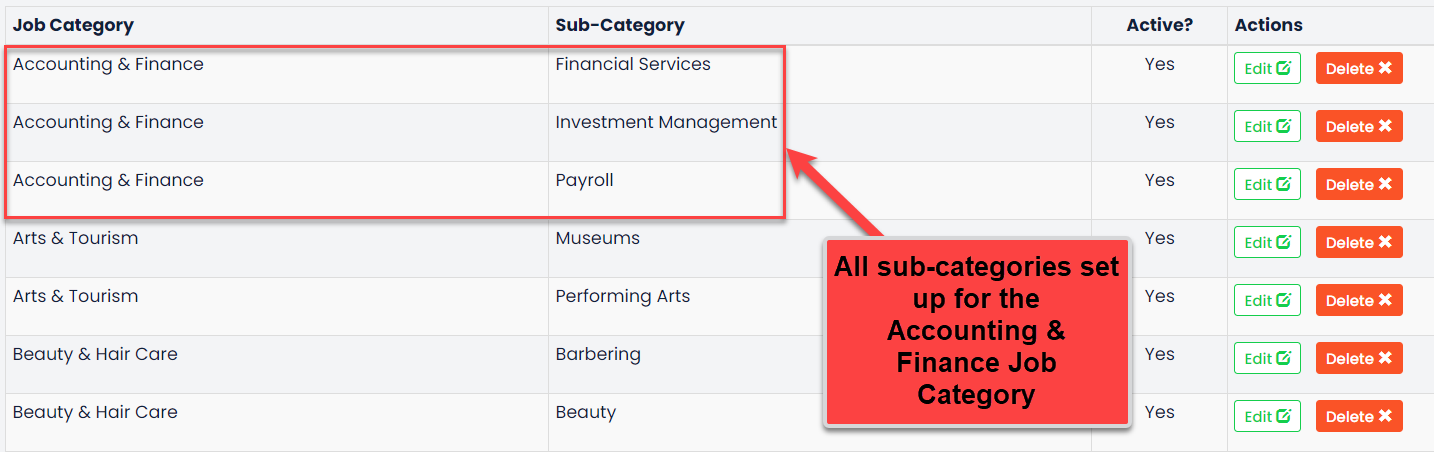
These can be amended by clicking the Edit button or removed by clicking the Delete button.
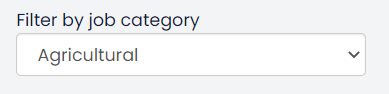
A user can also select a specific job category to review using the Filter by job category drop down selection. This will show only job sub-categories set up for the selected job category.

A new job sub category can be created by clicking on the Create Job Sub-category button.
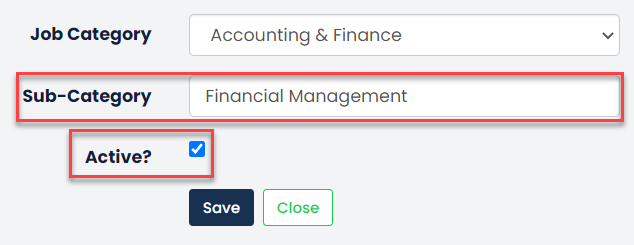
Just enter the name of this into the Sub-Category textbox and ensure the Active? tick box is selected then click Save.
Was this article helpful?
That’s Great!
Thank you for your feedback
Sorry! We couldn't be helpful
Thank you for your feedback
Feedback sent
We appreciate your effort and will try to fix the article