Application form PDFs can be generated from GETGOT, along with Shortlisting PDFs. These can be generated from the Stats area which is accessible via the stats button against each recruitment exercise listing. Full application forms can be generated at any point when the recruitment exercise is live (Generate Partial Batch). However, the shortlisting PDFs can only be generated when the recruitment exercise has closed.
To access these PDFs, click on the Stats button next to the job.

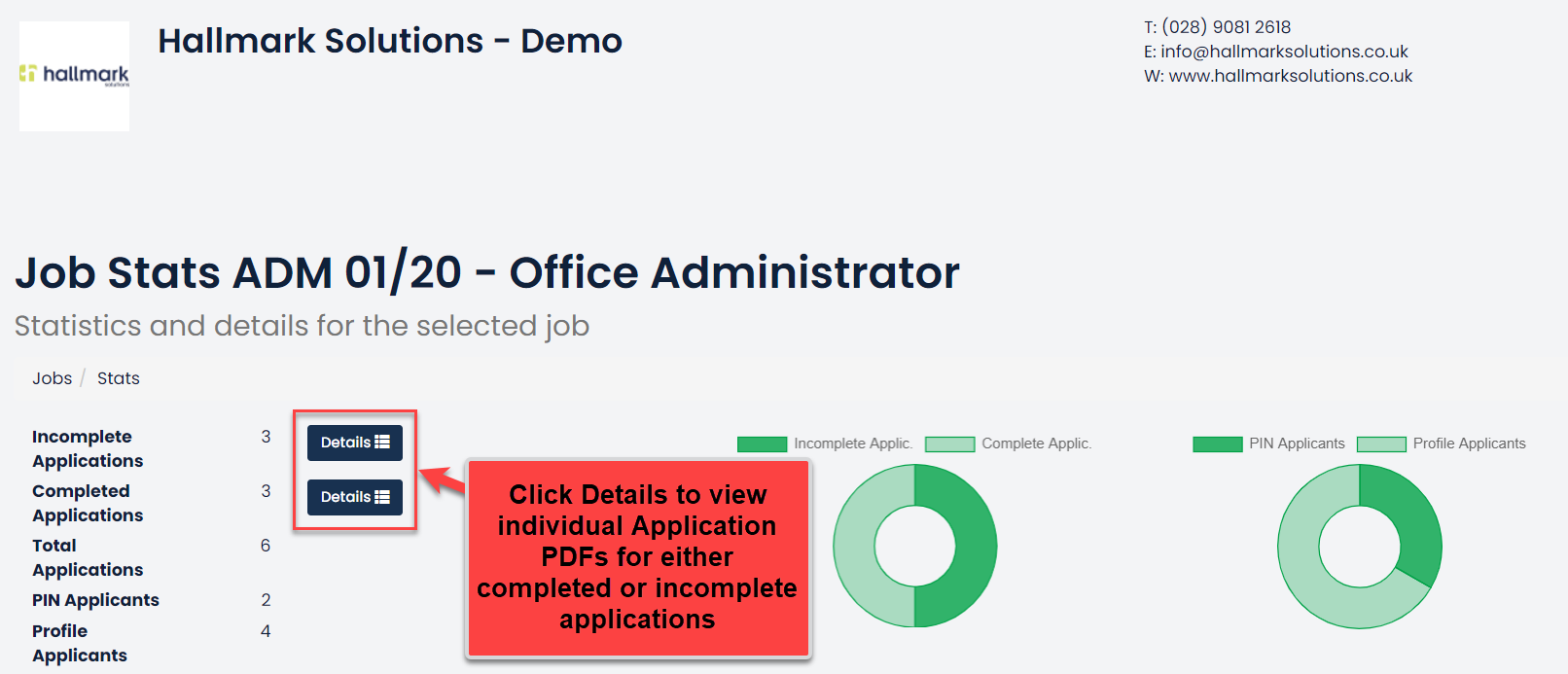
This will open the overall stats page for this particular job where you can view figures for how many completed and incomplete applications you have had, along with stats for how many have registered via the Profile or PIN methods.
From this screen you can view individual application forms or can also generate a batch of all the application forms.
To view the individual applicant’s details, click on the Details button. You can view the details of both the completed and incomplete applicants.
After clicking Details a grid view of all applicant’s will be displayed. From this grid you can then perform actions such as viewing their application form in a PDF format.

You can search for specific applicants using the Search Applications textbox. Just type a key detail such as, email, reference number or name and then click the Search button.

 To view a PDF version of the applicant’s application form, click Application Form in the Actions column.
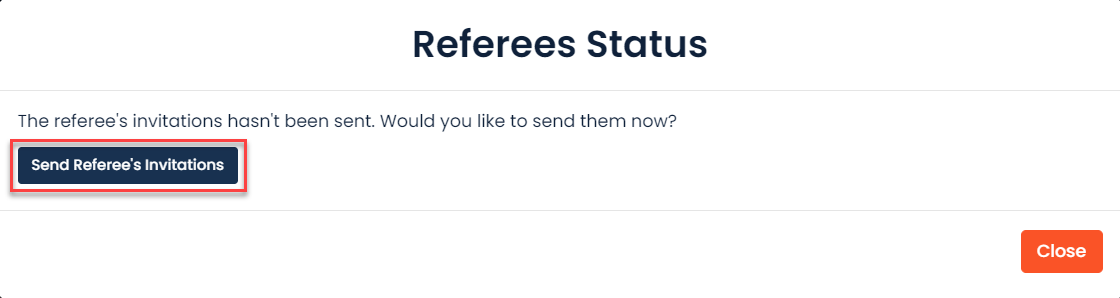
 Clicking on Referee Status allows you to send an invite to the applicant’s referees for them to complete questions configured by your Organisation in relation to your screening process.
Clicking on Send Referee’s Invitations will send the configured email to the email addresses of the referees as entered on the application form.

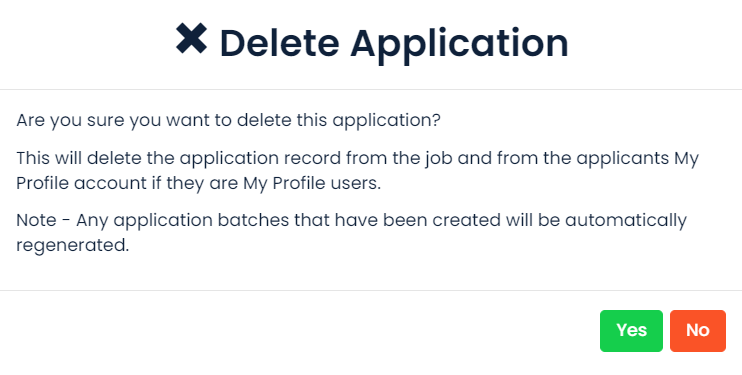
A standard user can also remove an applicant from the job by clicking Delete Application
This will remove the applicant and their application form from this process. If they are also a Profile user, the application will be removed from the applicant’s profile account.
If the applicant details have already been downloaded into PAMS you will need to delete from PAMS separately.
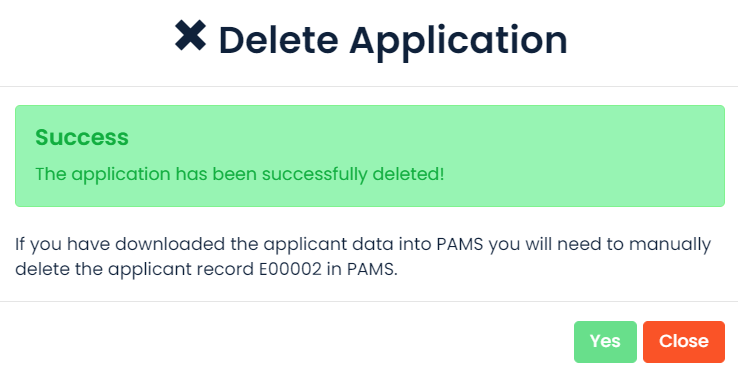
The deleted record will be displayed on the applicant details grid in red and the username who carried out the delete action will be referenced on the record.

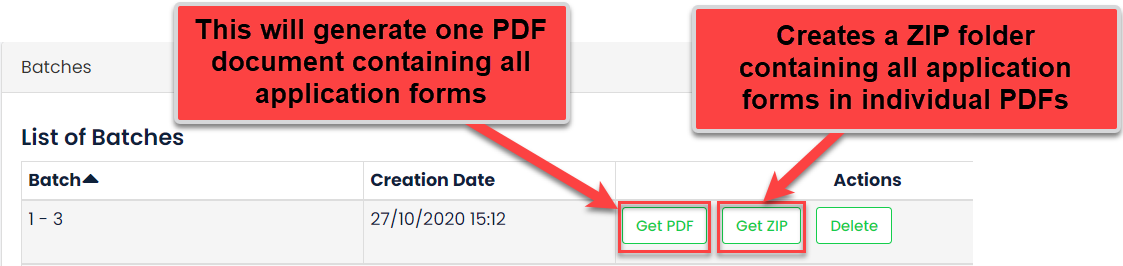
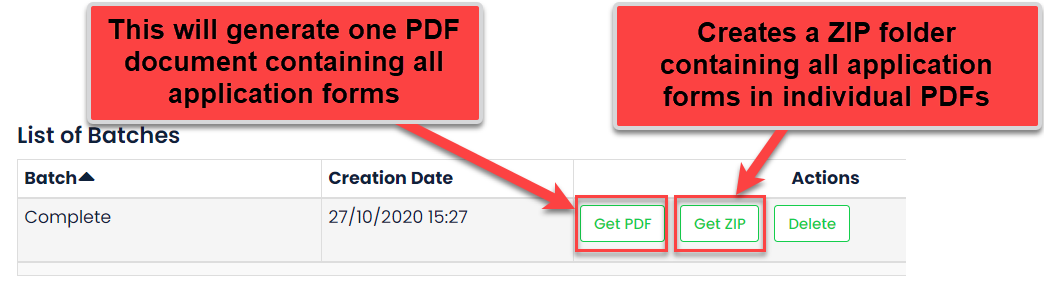
 Application forms can also be generated in batches, so you have all forms in one place and ready to print off. These batches can be generated at any point of the recruitment process even if the job is still open. Multiple batches can be generated when new applicants apply. To generate a batch while the job is still open click on the Generate Partial Batch button.
This will generate a batch containing copies of the full application forms of all the applicants who have successfully completed thus far.
Once the job has closed you can generate a batch containing every applicant’s full application form click on the Generate Complete Batch button.
This will generate a batch containing copies of the full application forms of all completed applicants.
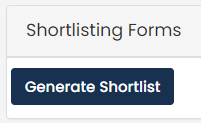 Shortlisting PDFs can also be generated here. These can only be generated once the job has closed. This will generate PDFs from all completed applicants which will only contain the information from what you have configured on the job as the shortlisting section. To generate these, click on the Generate Shortlist under the Shortlisting Forms section.
Again, this will generate a batch containing copies of the shortlisting sections of all completed applicants.
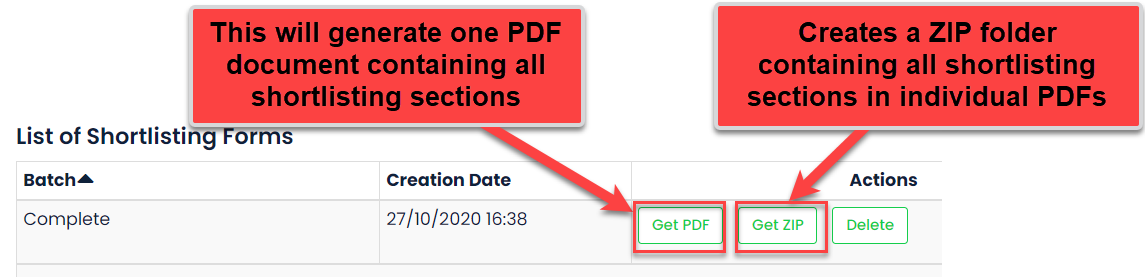
If you need to remove any of these batches, you can click the Delete button. This will delete the batch without affecting your actual applicant data. These can then be regenerated using the methods outlined above.
Was this article helpful?
That’s Great!
Thank you for your feedback
Sorry! We couldn't be helpful
Thank you for your feedback
Feedback sent
We appreciate your effort and will try to fix the article