To Apply for a job, you must click on the Apply button.
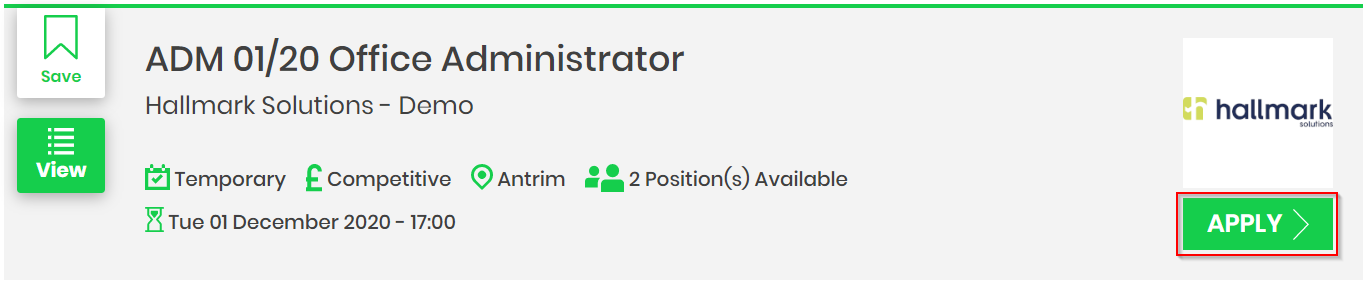
At this point, you will be asked to register for the job using an email address or you can continue with your Facebook ID.
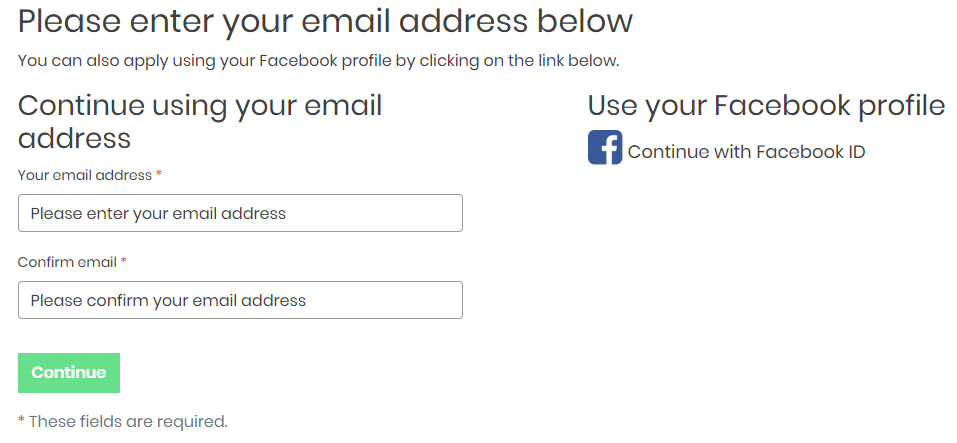
New Users of GetGot:
If you have never used GetGot to apply for a job you will be asked to either register for the job using the Profile or PIN method (Click here to find out what these mean).
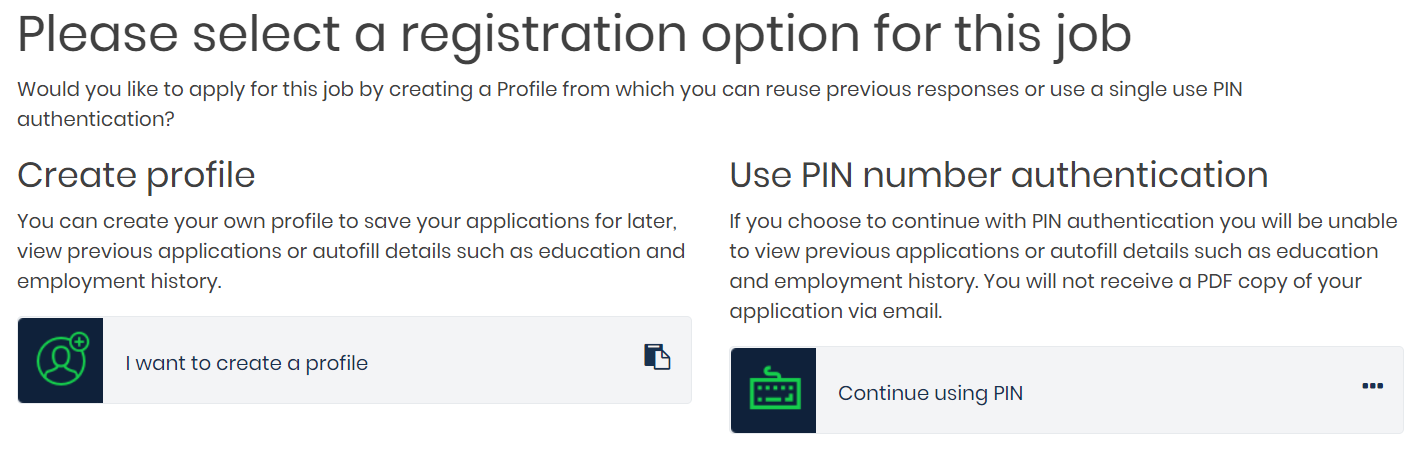
I want to create a Profile:
By choosing this option you will be creating a Profile on GetGot along with applying for this role. This will mean you will be able to view submitted applications, set up job notifications and re-use saved answers.
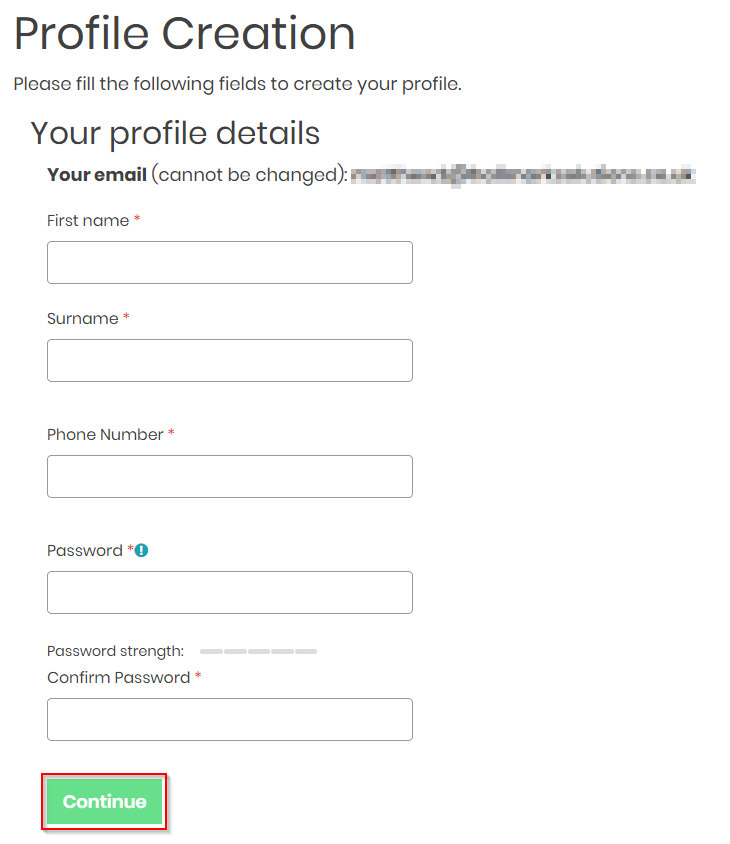
To create your Profile you will need the following minimum information, First Name, Surname, Phone Number and Password. Click Continue to create the Profile and register for the job.
Continue using PIN:
By choosing this option you will be submitting a one off application on GetGot. You will be presented with a PIN number, which you will need to resume the application at a later stage.
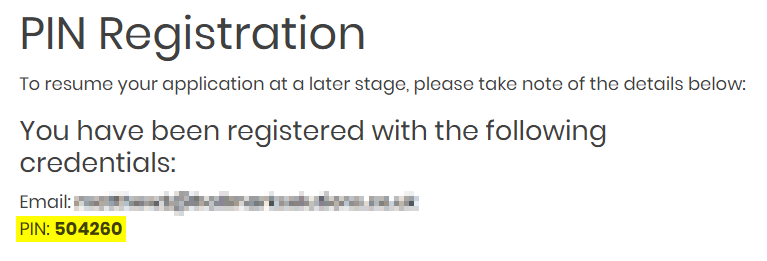
Existing Profile Users:
If you have already registered for a Profile account, you will be asked for your Profile password.
You can access your Profile at any time to enter further information for use in future application forms. Some of the information you enter in your application form can also be saved to your profile for future use.
Completing the Application Form:
The fields within the application form will vary dependent upon the organisation and role that you are applying for.
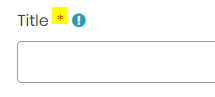
Any question with a red asterisk denotes a field which is deemed to be mandatory prior to submission of the application.
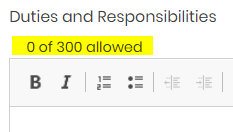
There are also notes depicting character and word limits and responses which are invalid such as a letter in a numerical field or an invalid date.
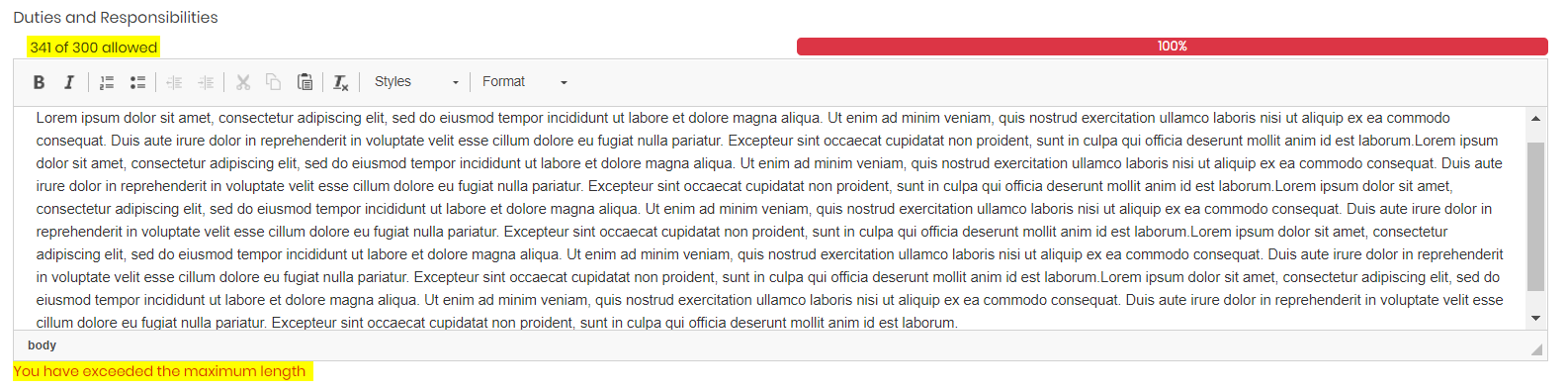
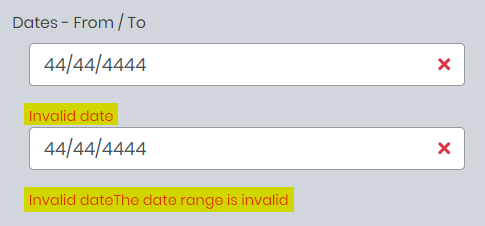
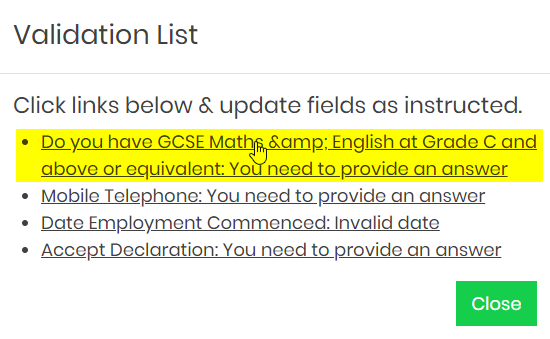
When you are ready to submit the application form, click Submit. Any outstanding validation errors will be presented prior to successful submission.
This window will list issues with your application form that are listed as hyperlinks. Clicking on each hyperlink will take you to the exact question requiring amendment or completion.
You can check for further outstanding or invalid answers by clicking on the Validation Errors List button.
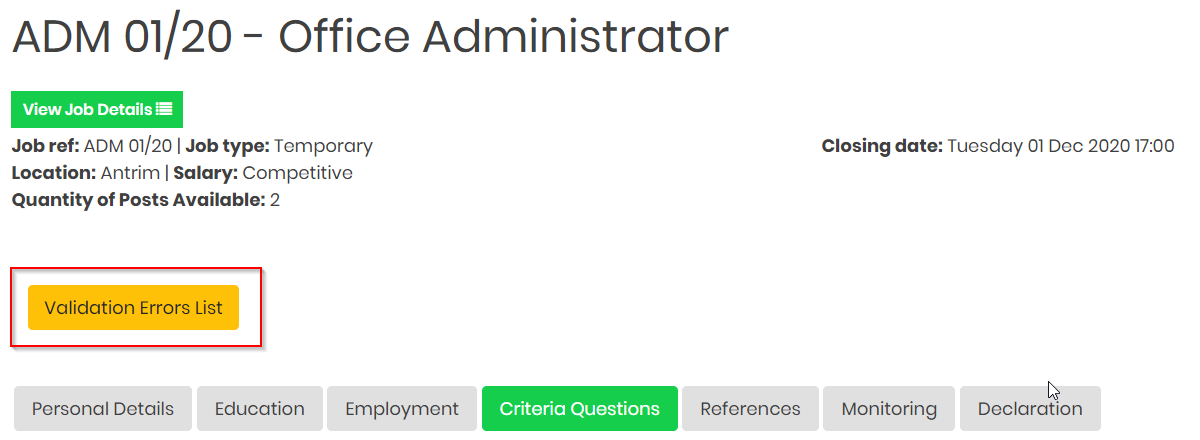
This window will list any further outstanding issues with your application form.
Upon successful submission you will be provided with a successful submission message.
Successful Profile Submission:
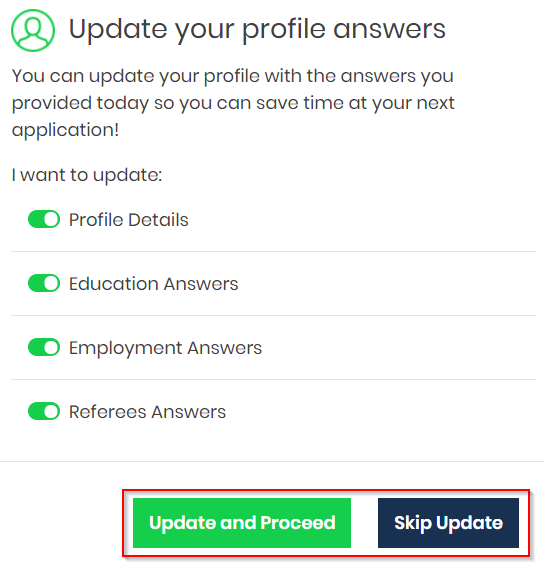
You will be presented with the following message screen. You can download a copy of your application by clicking the Application Form and Monitoring Form buttons.
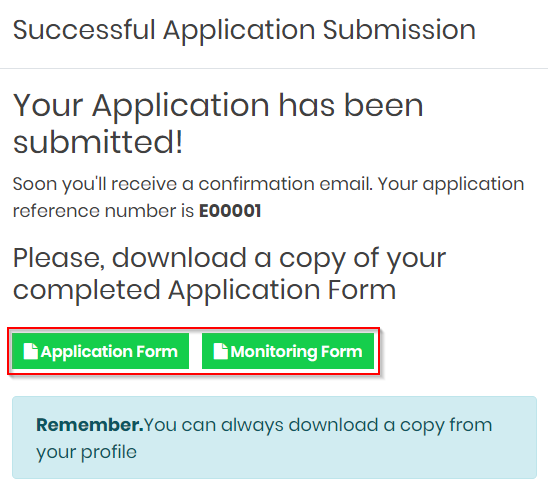
You can also choose to populate your Profile using the answers provided in this application by clicking Update and Proceed. Or you can choose to skip this by clicking Skip Update.
Successful PIN Submission:
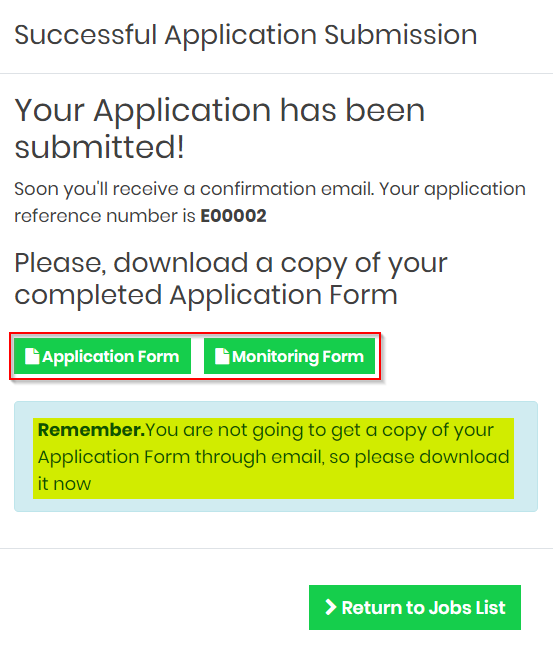
As a PIN applicant, you will see the following successful message screen. Click on Application Form and Monitoring Form to download a copy of your application. You MUST download a copy of your application now if you require this, as you will have no way to get this information later.
Was this article helpful?
That’s Great!
Thank you for your feedback
Sorry! We couldn't be helpful
Thank you for your feedback
Feedback sent
We appreciate your effort and will try to fix the article